
基於Streamlit制作的時間序列數據分析APP
1.為什么要使用Streamlit( 官網介紹鏈接 )
在數據科學領域,一方面,當我們在學習或者實踐機器學習算法的時候,需要進行一些參數調整;另一方面,我們也希望將最后的成果通過一種友好的可視化效果呈現出來。
雖然可以通過Django、Flask等技術構建Web App,但是它們對於非專業的編程者來說,初學是困難的。
Streamlit是一種快速搭建數據可視化APP的技術 。它上手簡單,並且能夠提供一些操作簡單的交互式控件。
2.Streamlit使用簡介( [ 官網使用教程
](https://docs.streamlit.io/en/stable/index.html) )
2.1 安裝和使用
安裝 :pip install streamlit
import streamlit as st
Step 1 :新建一個app.py文件
Step 2 :寫下一段代碼
Step 3 :在終端輸入命令:streamlit run app.py
Step 4 :然后會在我們的默認瀏覽器中自動打開一個網址,呈現剛剛編程的內容
2.2 常用API介紹( 官方API參考文檔
)
官網上有詳細的介紹,在這里僅簡單列舉一些。
2.2.1 文本顯示命令
    st.text('Fixed width text')
    st.markdown('_Markdown_')
    st.latex(r''' e^{i\pi} + 1 = 0 ''')
    st.write('Most objects')
    st.write(['st', 'is <', 3])
    st.title('My title')
    st.header('My header')
    st.subheader('My sub')
    st.code('for i in range(8): foo()')
    * optional kwarg unsafe_allow_html = True
2.2.2 數據顯示命令
    st.dataframe(my_dataframe)
    st.table(data.iloc[0:10])
    st.json({'foo':'bar','fu':'ba'})
2.2.3 圖表顯示命令
    st.line_chart(data)
    st.area_chart(data)
    st.bar_chart(data)
    st.pyplot(fig)
    st.altair_chart(data)
    st.vega_lite_chart(data)
    st.plotly_chart(data)
    st.bokeh_chart(data)
    st.pydeck_chart(data)
    st.deck_gl_chart(data)
    st.graphviz_chart(data)
    st.map(data)
2.2.4 交互控件顯示命令
    st.button('Hit me')
    st.checkbox('Check me out')
    st.radio('Radio', [1,2,3])
    st.selectbox('Select', [1,2,3])
    st.multiselect('Multiselect', [1,2,3])
    st.slider('Slide me', min_value=0, max_value=10)
    st.select_slider('Slide to select', options=[1,'2'])
    st.text_input('Enter some text')
    st.number_input('Enter a number')
    st.text_area('Area for textual entry')
    st.date_input('Date input')
    st.time_input('Time entry')
    st.file_uploader('File uploader')
    st.color_picker('Pick a color')
3.結合實例
因為之前在學習和實踐 [ 基於時間序列的機器學習預測分析方法
](https://blog.csdn.net/Be_racle/article/details/112999853)
,這里的例子正是在前面幾篇博客基礎上寫的。實現得比較簡單,僅供參考。
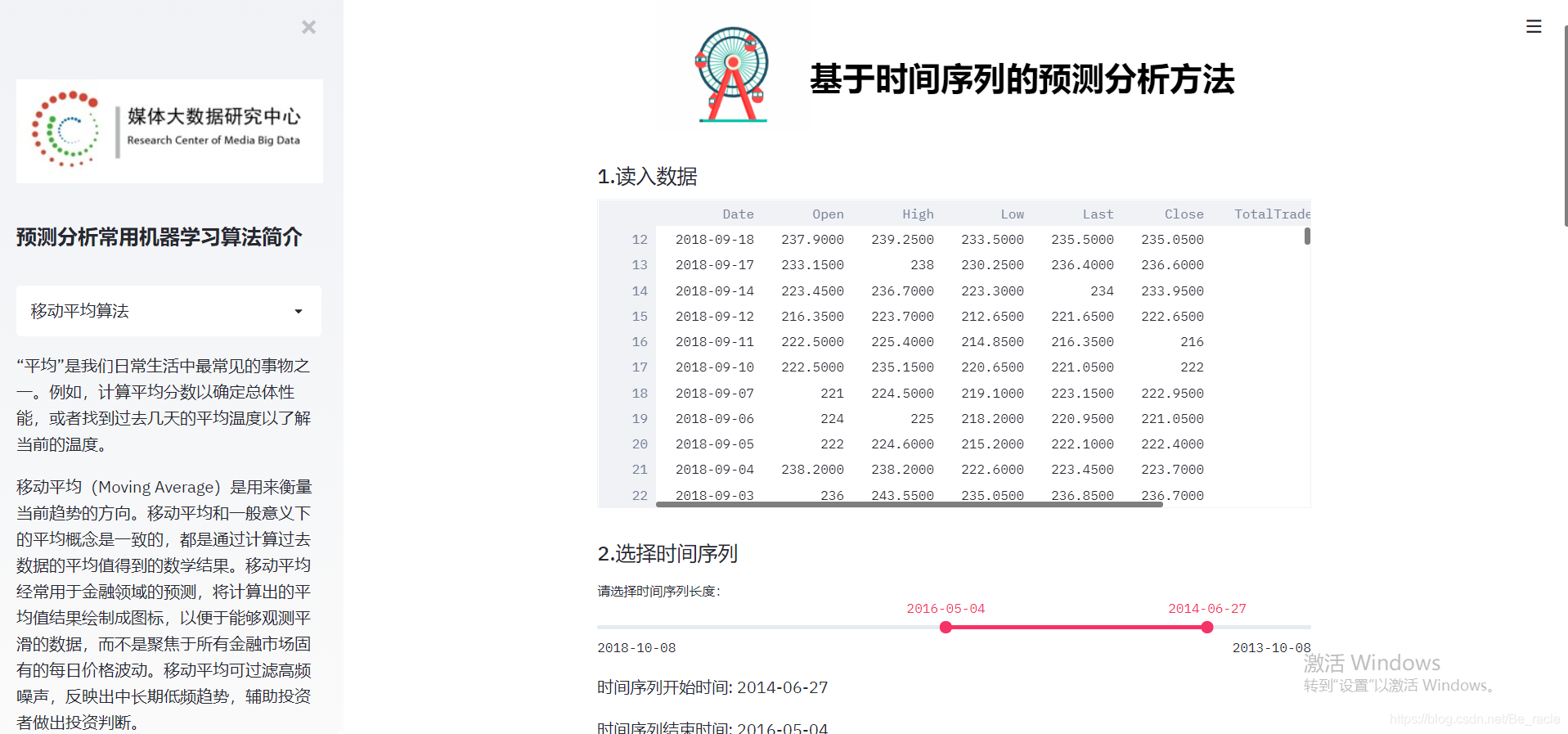
3.1 讀入數據
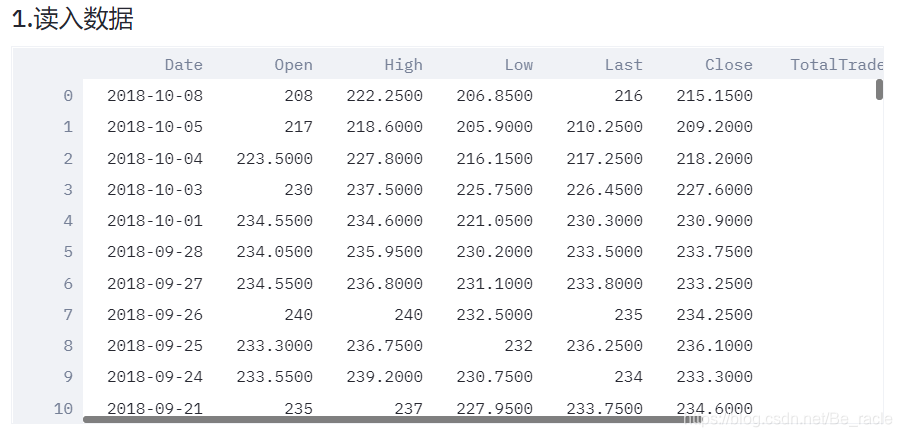
這里的數據我用的是固定的 股價數據 ,當然在streamlit中提供“上傳文件”的命令file_uploader,這樣我們就可以選擇其他的數據源。
    st.subheader('1.讀入數據')
    df = pd.read_csv('NSE-TATAGLOBAL11.csv')
    st.dataframe(df)
3.2 選擇時間序列
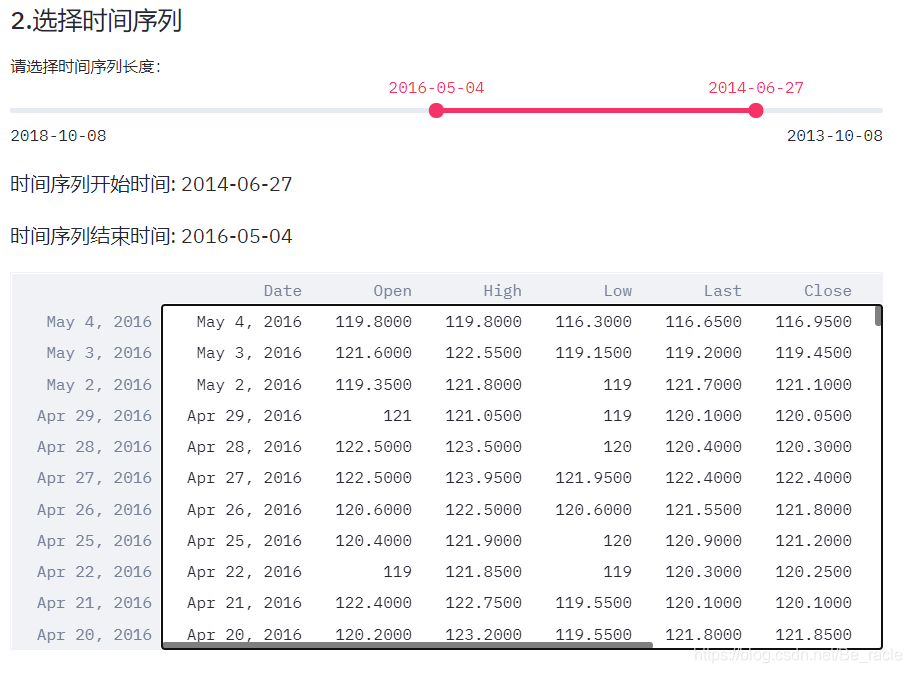
通過st.select_slider選擇時間序列長度。需要注意的是,我們必須保證滑動條上的每一個數據點都能在源數據集中找到,不然可能會出現錯誤。
    st.subheader('2.選擇時間序列')
    options = np.array(df['Date']).tolist()

    (start_time, end_time) = st.select_slider("請選擇時間序列長度:",
         options = options,
         value= ('2016-05-04','2014-06-27',),
     )
    st.write("時間序列開始時間:",end_time)
    st.write("時間序列結束時間:",start_time)

    #setting index as date
    df['Date'] = pd.to_datetime(df.Date, format = '%Y-%m-%d')
    df.index = df['Date']

    df = df[start_time:end_time]
    st.dataframe(df)
3.3 划分訓練集
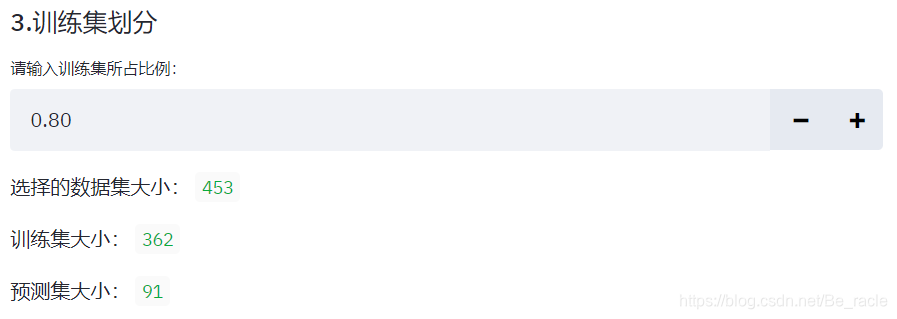
訓練集默認大小是選擇的數據集的80%,可選區間是50%~90%,間隔10%。
    st.subheader('3.訓練集划分')
    number = st.number_input("請輸入訓練集所占比例:",min_value=0.5,max_value=0.9,value=0.8,step=0.1)
    split = int(number * len(df))
    st.write("選擇的數據集大小:",len(df))
    st.write("訓練集大小:",split)
    st.write("預測集大小:",len(df)-split)
3.4 選擇預測目標
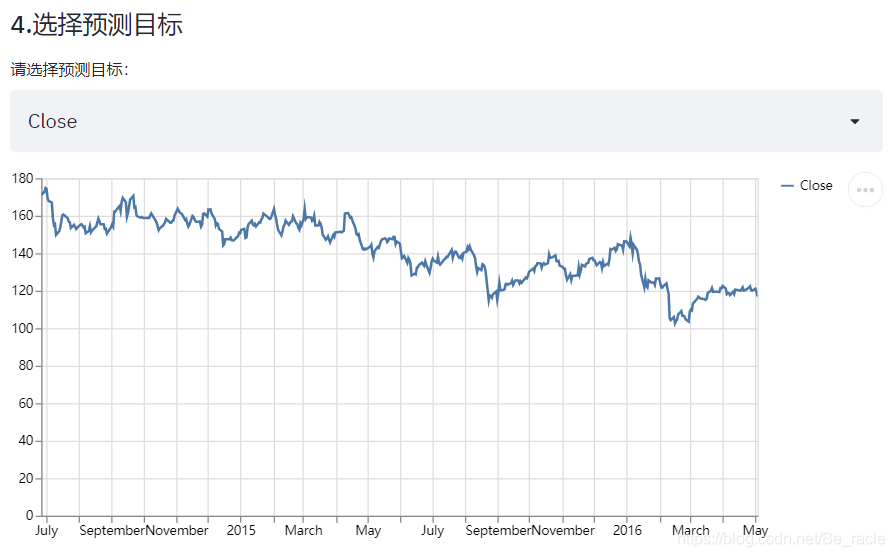
通過selectbox選擇需要預測的目標列。
    st.subheader('4.選擇預測目標')
    type = st.selectbox('請選擇預測目標:',('Close','Turnover'))
    st.line_chart(df[type])
3.5 選擇預測算法
這里一共用到了5種算法,分別是 [ 移動平均
](https://blog.csdn.net/Be_racle/article/details/112600268) 、 [ 線性回歸
](https://blog.csdn.net/Be_racle/article/details/112604437) 、 [ 最近鄰
](https://blog.csdn.net/Be_racle/article/details/112747349) 、 [ AutoARIMA
](https://blog.csdn.net/Be_racle/article/details/112780195) 和 [ LSTM
](https://blog.csdn.net/Be_racle/article/details/112999853) ,在之前的博客中有詳細的介紹。
    st.subheader('5.選擇機器學習算法')
    genre = st.selectbox("請選擇時間序列預測算法",
         ('移動平均算法', '線性回歸算法', '最近鄰算法', 'AutoARIMA算法', 'LSTM算法'))
    if genre == '移動平均算法':
        MovingAverage(df, type, split)
    elif genre == '線性回歸算法':
         LinearRegression(df, type, split)
    elif genre == '最近鄰算法':
         KNearestNeighbours(df, type, split)
    elif genre == 'AutoARIMA算法':
        AutoARIMA(df, type, split)
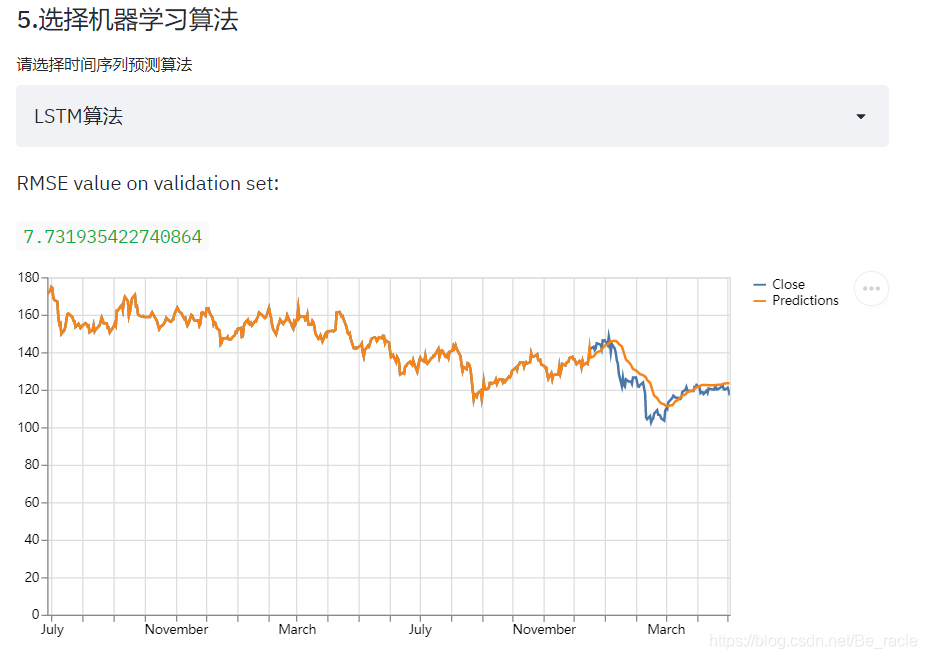
    elif genre == 'LSTM算法':
        LongShortTM(df, type, split)
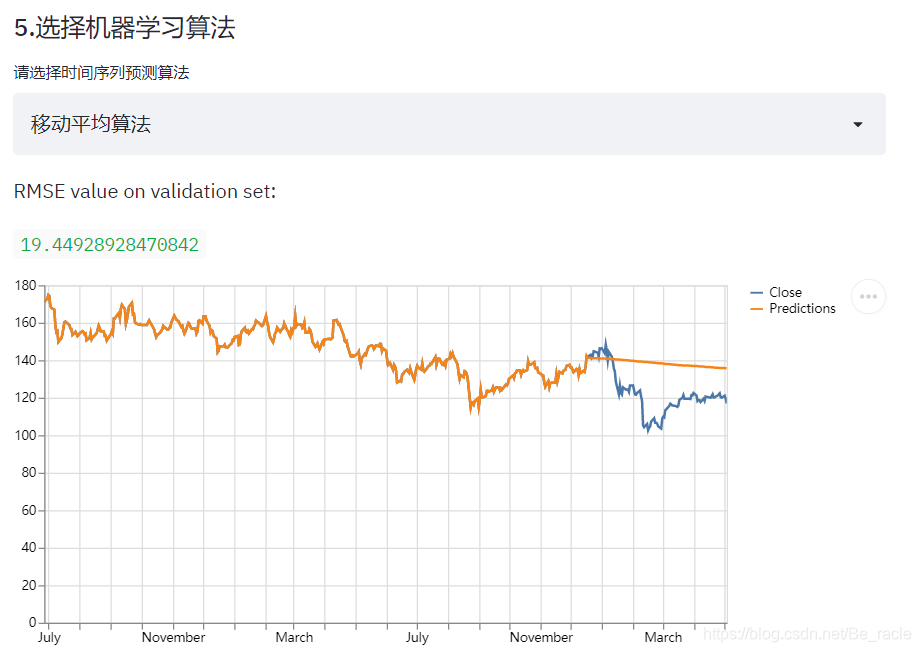
選擇不同的算法會有不同的預測效果。正如前面幾篇博客總結的那樣,LSTM在這個數據集上會有比較好的預測效果。
3.6 其他說明
側邊欄我們可以通過streamlit.sidebar實現
    st.sidebar.image('BigDataCenter.jpg',width=300)
    st.sidebar.header("預測分析常用機器學習算法簡介")
    choose = st.sidebar.selectbox("",('移動平均算法','線性回歸算法',
                         '最近鄰算法','AutoARIMA算法','LSTM算法'))
    if choose == '移動平均算法':
        st.sidebar.write('')
        st.sidebar.image('MVPicture.png',width=300)
        st.sidebar.write()
    elif choose == '線性回歸算法':
        st.sidebar.write()
    elif choose == '最近鄰算法':
        st.sidebar.write()
    elif choose == 'AutoARIMA算法':
        st.sidebar.write()
    elif choose == 'LSTM算法':
        st.sidebar.write()
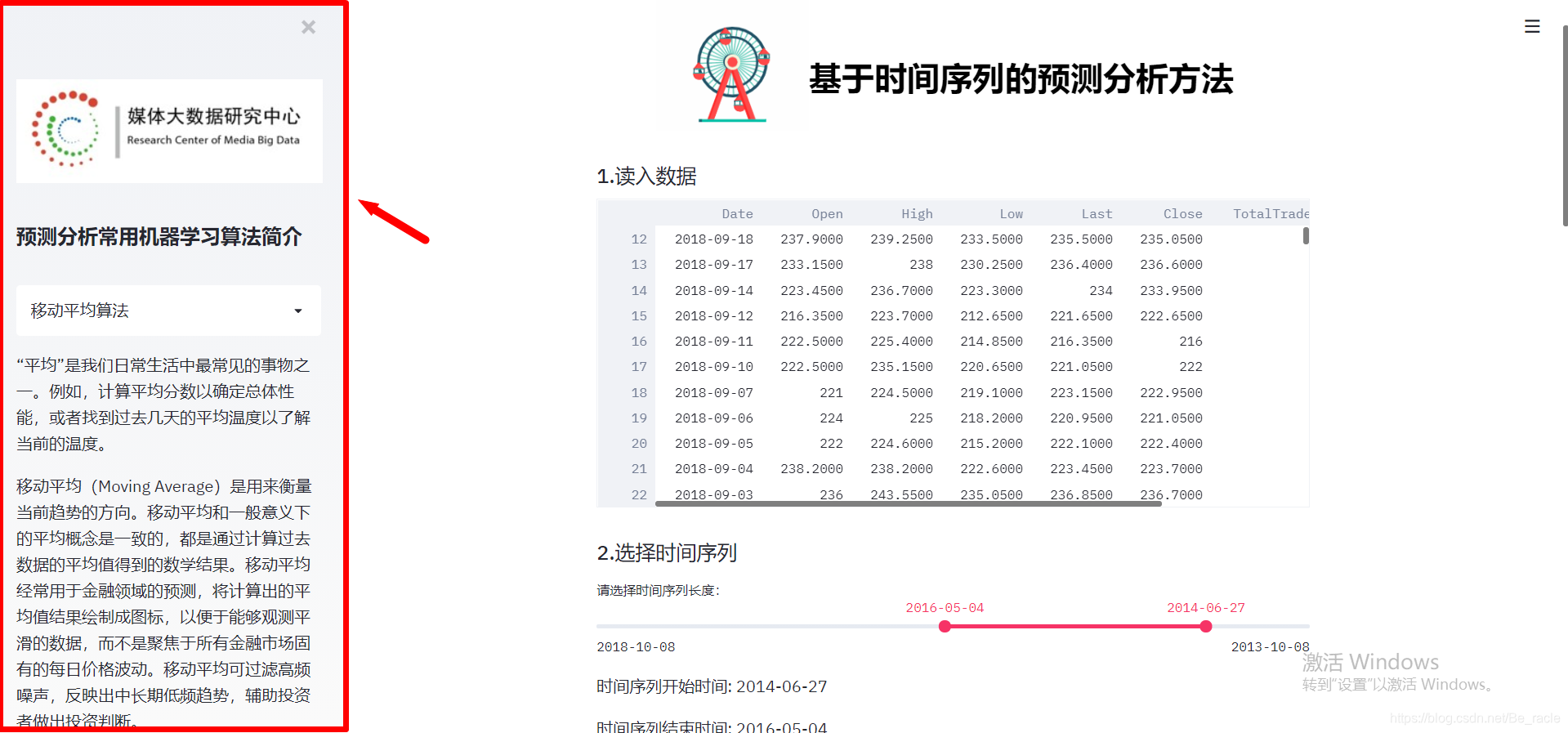
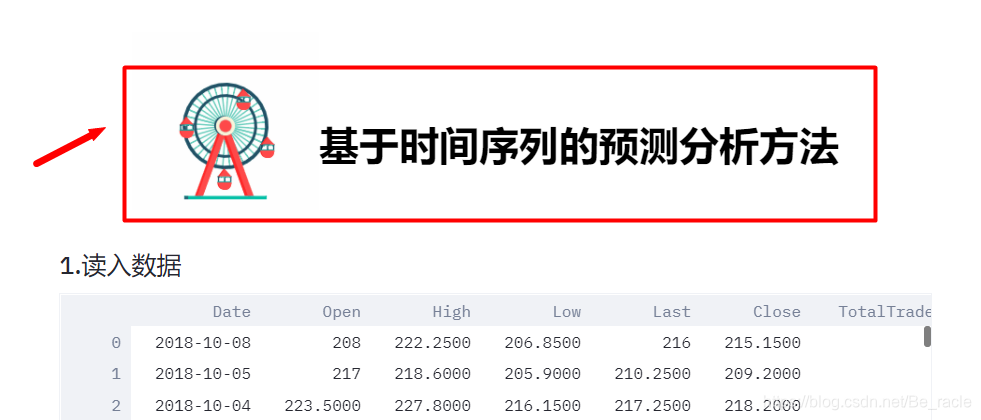
但是對於下面這種排版格式,streamlit是沒有辦法直接做到的,但是我們可以將寫好的HTML+CSS文件傳到streamlit,其中 [
components.html()
](https://docs.streamlit.io/en/stable/develop_streamlit_components.html)
可以幫助我們做到這一點。
4.源碼下載
代碼和數據放在了 [ 我的Github ](https://github.com/Beracle/03-Streamlit-Forecast-
WebApp.git) 上,需要的朋友可以自行下載。
Python:3.8.5
requirements:

