一、簡介
anchors 提供了一種方式,讓你可以通過指定一個元素與其他元素的關系來確定元素在界面中的位置,即錨布局。
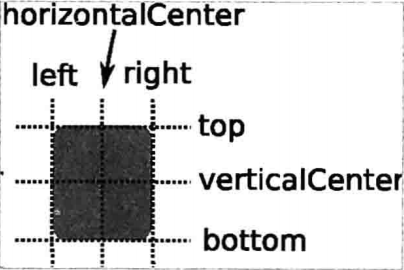
你可以想象一下,每個 Item 都有 7 條不可見的輔線:左(left)、水平中心(horizontalCenter)、 上(top)、下(bottom)、右(right)、垂直中心(verticalCenter)、基線(baseline)。如下圖所示:
使用 anchors 布局時,除了對齊錨線,還可以指定上(topMargin)、下(bottomMargin)、 左(leftMargin)、右(rightMargin)四個邊的留白。如下圖所示:
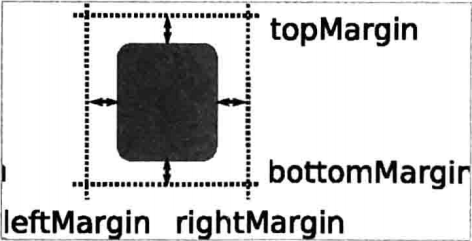
而如果你想懶省事兒,也可以使用 margins 屬性將四個邊的留白設置成一樣。
錨布局是最靈活的一種 Qt Quick 布局方式,使用它你可以隨意擺布界面上那些可見元素,不過,如果你的界面元素很多,它也將是代碼量最大的一種布局方式。
二、各種例子
例子1,兩個矩形在窗口左側,無間距:
import QtQuick 2.9
import QtQuick.Window 2.2
import QtQuick.Controls 2.4

Window {
    visible: true
    width: 600
    height: 480
    title: qsTr("Hello World")

    Rectangle {
        id: rect1
        width: 100
        height: 100
        color: "blue"
        anchors.left: parent.left
    }

    Rectangle {
        id: rect2
        width: 100
        height: 100
        color: "red"
        anchors.left: rect1.right
    }
}
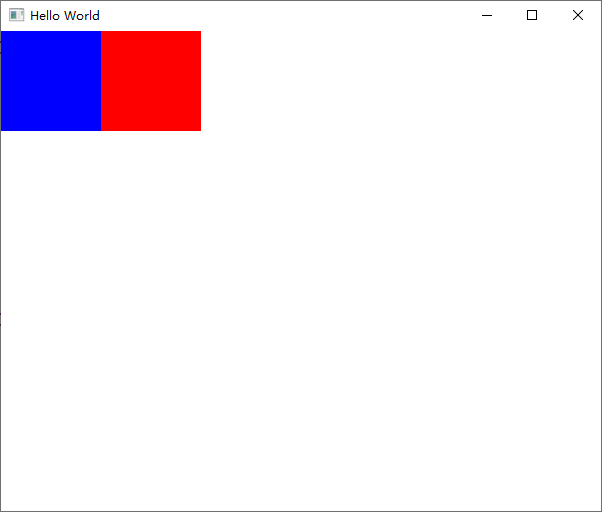
例子2,上面的兩個矩形挨得太緊了,要留點間距,可以通過指定 anchors.leftMargin 的留白來實現:
import QtQuick 2.9
import QtQuick.Window 2.2
import QtQuick.Controls 2.4

Window {
    visible: true
    width: 600
    height: 480
    title: qsTr("Hello World")

    Rectangle {
        id: rect1
        width: 100
        height: 100
        color: "blue"
        anchors.left: parent.left
        anchors.leftMargin: 20
    }

    Rectangle {
        id: rect2
        width: 100
        height: 100
        color: "red"
        anchors.left: rect1.right
        anchors.leftMargin: 60
    }
}
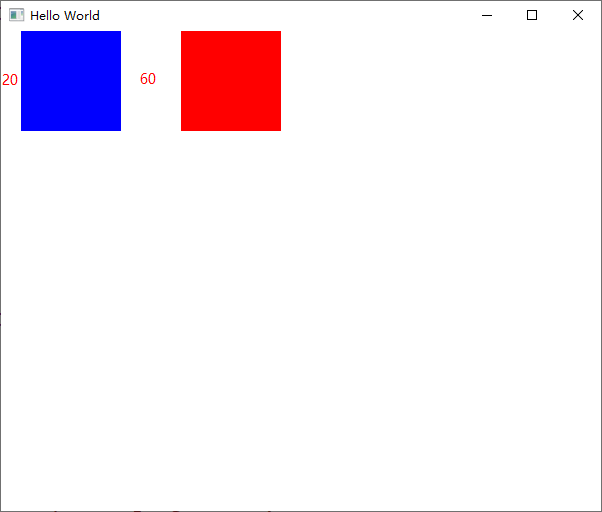
例子3,同時在上方也留點間距:
import QtQuick 2.9
import QtQuick.Window 2.2
import QtQuick.Controls 2.4

Window {
    visible: true
    width: 600
    height: 480
    title: qsTr("Hello World")

    Rectangle {
        id: rect1
        width: 100
        height: 100
        color: "blue"
        anchors.left: parent.left
        anchors.leftMargin: 20
        anchors.top: parent.top
        anchors.topMargin: 40
    }

    Rectangle {
        id: rect2
        width: 100
        height: 100
        color: "red"
        anchors.left: rect1.right
        anchors.leftMargin: 60
        anchors.top: parent.top
        anchors.topMargin: 40
    }
}
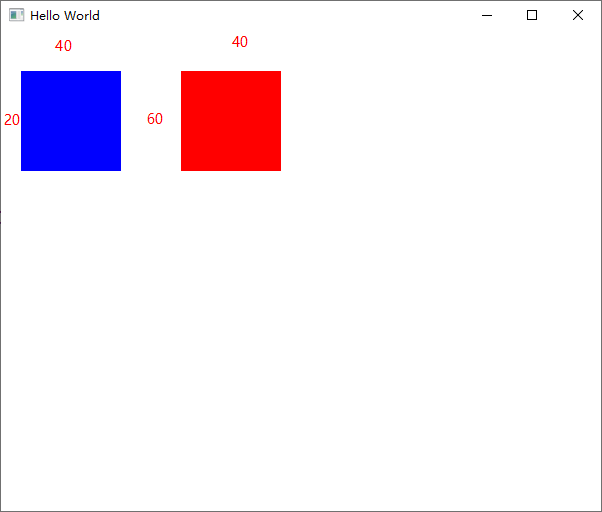
例子4,一個矩形水平居中,另一個矩形垂直居中:
import QtQuick 2.9
import QtQuick.Window 2.2
import QtQuick.Controls 2.4

Window {
    visible: true
    width: 600
    height: 480
    title: qsTr("Hello World")

    Rectangle {
        id: rect1
        width: 100
        height: 100
        color: "blue"
        anchors.horizontalCenter: parent.horizontalCenter
        anchors.top: parent.top
        anchors.topMargin: 40
    }

    Rectangle {
        id: rect2
        width: 100
        height: 100
        color: "red"
        anchors.verticalCenter: parent.verticalCenter
        anchors.right: parent.right
        anchors.rightMargin: 40
    }
}
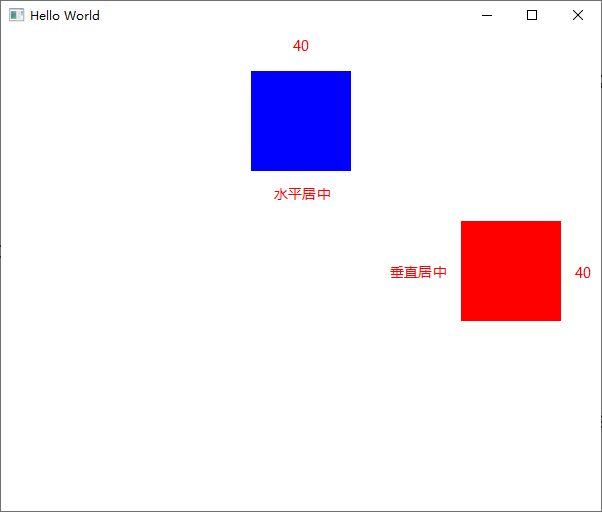
例子5,centerln 表示將一個 Item 居中放置到一個 Item 內;fill 表示充滿某個 Item:
import QtQuick 2.9
import QtQuick.Window 2.2
import QtQuick.Controls 2.4

Window {
    visible: true
    width: 600
    height: 480
    title: qsTr("Hello World")

    Rectangle {
        id: rect1
        color: "blue"
        anchors.fill: parent
    }

    Rectangle {
        id: rect2
        width: 100
        height: 100
        color: "red"
        anchors.centerIn: parent
    }
}
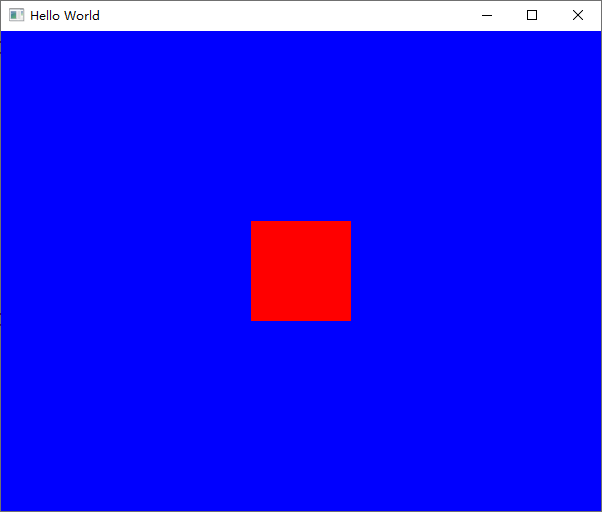
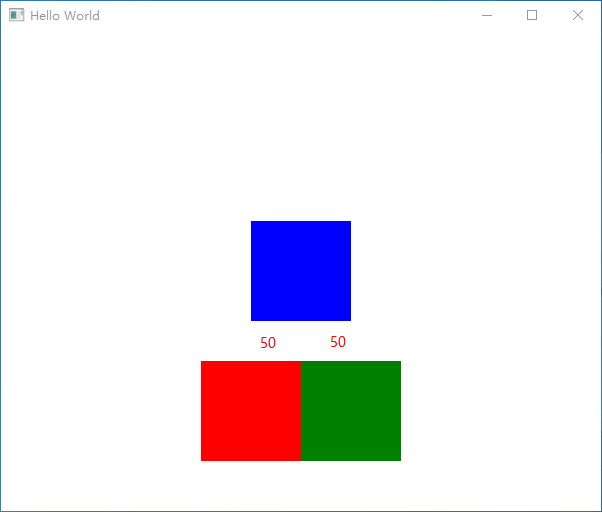
例子6,三個矩形擺放成"三頭犬"的形式:
import QtQuick 2.9
import QtQuick.Window 2.2
import QtQuick.Controls 2.4

Window {
    visible: true
    width: 600
    height: 480
    title: qsTr("Hello World")

    Rectangle {
        id: rect1
        width: 100
        height: 100
        color: "blue"
        anchors.centerIn: parent
    }

    Rectangle {
        id: rect2
        width: 100
        height: 100
        color: "red"
        anchors.top: rect1.bottom
        anchors.topMargin: 40
        anchors.right: rect1.left
        anchors.rightMargin: -50 // 可以使用負值
    }

    Rectangle {
        id: rect3
        width: 100
        height: 100
        color: "green"
        anchors.top: rect1.bottom
        anchors.topMargin: 40
        anchors.left: rect1.left
        anchors.leftMargin: 50
    }
}