
Alertmanager通過釘釘實現告警功能
Alertmanger介紹點擊此鏈接:閆世成的博客園
一)、首先在釘釘上操作:
1、打開釘釘,創建一個群組后,點擊群組設置:

2、找到智能群助手:

3、添加自定義機器人:


以上就是在釘釘上操作的步驟!!!!!!!!!!
二)、部署prometheus-webhook-dingtalk:
1、下載官方源碼包,進行解壓與鏈接:
wget https://github.com/timonwong/prometheus-webhook-dingtalk/releases/download/v2.0.0/prometheus-webhook-dingtalk-2.0.0.linux-amd64.tar.gz
tar xf prometheus-webhook-dingtalk-2.0.0.linux-amd64.tar.gz
ln -sv prometheus-webhook-dingtalk-2.0.0.linux-amd64 /opt/prometheus-webhook
2、准備配置文件:
mv config.example.yml config.yml         //將配置文件重命名
vim config.yml
將釘釘創建機器人的webhook地址與加簽秘鑰添加進去

3、准備啟動文件
vim /usr/lib/systemd/system/prometheus-webhook-dingtalk.service

4、啟動服務
systemctl restart prometheus-webhook-dingtalk      //啟動服務
systemctl status prometheus-webhook-dingtalk       //查看運行狀態
systemctl enable prometheus-webhook-dingtalk       //加入開機自啟動
ss -lnt  //查看端口號

以上便是部署prometheus-webhook-dingtalk!!!!!!!!!!!
三)、修改Alertmanager配置文件:
1、進入到Alertmanager的配置文件,進行修改

2、重啟Prometheus與Alertmanager服務
[root@ops prometheus]# systemctl restart prometheus
[root@ops prometheus]# systemctl status prometheus
[root@ops prometheus]# systemctl restart alertmanager
[root@ops prometheus]# systemctl status alertmanager


3、測試與結果:
1、瀏覽器打開http://localhost:9090/alerts

2、瀏覽器再打開http://localhost:9093/#/alerts

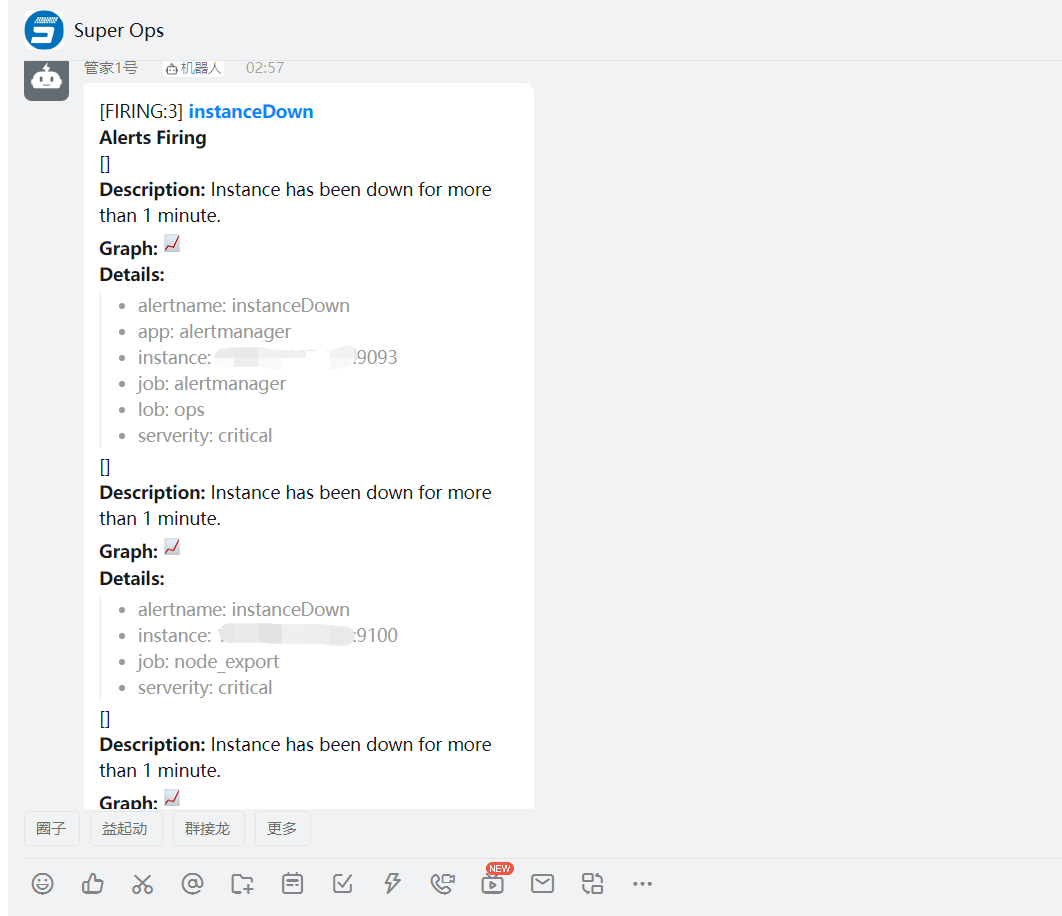
3、最后查看釘釘是否有告警通知
#### 由於告警模板還未研究透徹,日后學有所成,必將安排上!!!