
了解 K8s
K8s 開始
Kubernetes 是用於自動部署,擴展和管理容器化應用程序的開源系統。本文將介紹如何快速開始 K8s 的使用。
了解 K8s
搭建 K8s
本地開發測試,需要搭建一個 K8s 輕量服務。實際部署時,可以用雲廠商的 K8s 服務。
本文以 k3d 為例,於 macOS 搭建 K8s 服務。於 Ubuntu 則推薦 MicroK8s。其他可替代方案有:
k3d
k3s 是 Rancher 推出的 K8s 輕量版。而 k3d 即 k3s in docker,以 docker 容器管理 k3s 集群。
以下搭建過程,是於 macOS 的筆記,供參考。其他平台,請依照官方文檔進行。
# 安裝 kubectl: 命令行工具 brew install kubectl # 安裝 kubecm: 配置管理工具 brew install kubecm # 安裝 k3d brew install k3d ❯ k3d version k3d version v4.4.8 k3s version latest (default) 創建集群(1主2從):
❯ k3d cluster create mycluster --api-port 6550 --servers 1 --agents 2 --port 8080:80@loadbalancer --wait INFO[0000] Prep: Network INFO[0000] Created network 'k3d-mycluster' (23dc5761582b1a4b74d9aa64d8dca2256b5bc510c4580b3228123c26e93f456e) INFO[0000] Created volume 'k3d-mycluster-images' INFO[0001] Creating node 'k3d-mycluster-server-0' INFO[0001] Creating node 'k3d-mycluster-agent-0' INFO[0001] Creating node 'k3d-mycluster-agent-1' INFO[0001] Creating LoadBalancer 'k3d-mycluster-serverlb' INFO[0001] Starting cluster 'mycluster' INFO[0001] Starting servers... INFO[0001] Starting Node 'k3d-mycluster-server-0' INFO[0009] Starting agents... INFO[0009] Starting Node 'k3d-mycluster-agent-0' INFO[0022] Starting Node 'k3d-mycluster-agent-1' INFO[0030] Starting helpers... INFO[0030] Starting Node 'k3d-mycluster-serverlb' INFO[0031] (Optional) Trying to get IP of the docker host and inject it into the cluster as 'host.k3d.internal' for easy access INFO[0036] Successfully added host record to /etc/hosts in 4/4 nodes and to the CoreDNS ConfigMap INFO[0036] Cluster 'mycluster' created successfully! INFO[0036] --kubeconfig-update-default=false --> sets --kubeconfig-switch-context=false INFO[0036] You can now use it like this: kubectl config use-context k3d-mycluster kubectl cluster-info 查看集群信息:
❯ kubectl cluster-info
Kubernetes control plane is running at https://0.0.0.0:6550
CoreDNS is running at https://0.0.0.0:6550/api/v1/namespaces/kube-system/services/kube-dns:dns/proxy
Metrics-server is running at https://0.0.0.0:6550/api/v1/namespaces/kube-system/services/https:metrics-server:/proxy
查看資源信息:
# 查看 Nodes ❯ kubectl get nodes NAME STATUS ROLES AGE VERSION k3d-mycluster-agent-0 Ready <none> 2m12s v1.20.10+k3s1 k3d-mycluster-server-0 Ready control-plane,master 2m23s v1.20.10+k3s1 k3d-mycluster-agent-1 Ready <none> 2m4s v1.20.10+k3s1 # 查看 Pods ❯ kubectl get pods --all-namespaces NAMESPACE NAME READY STATUS RESTARTS AGE kube-system coredns-6488c6fcc6-5n7d9 1/1 Running 0 2m12s kube-system metrics-server-86cbb8457f-dr7lh 1/1 Running 0 2m12s kube-system local-path-provisioner-5ff76fc89d-zbxf4 1/1 Running 0 2m12s kube-system helm-install-traefik-bfm4c 0/1 Completed 0 2m12s kube-system svclb-traefik-zx98g 2/2 Running 0 68s kube-system svclb-traefik-7bx2r 2/2 Running 0 68s kube-system svclb-traefik-cmdrm 2/2 Running 0 68s kube-system traefik-6f9cbd9bd4-2mxhk 1/1 Running 0 69s 測試 Nginx:
# 創建 Nginx Deployment kubectl create deployment nginx --image=nginx # 創建 ClusterIP Service,暴露 Nginx 端口 kubectl create service clusterip nginx --tcp=80:80 # 創建 Ingress Object # k3s 以 traefik 為默認 ingress controller cat <<EOF | kubectl apply -f - apiVersion: networking.k8s.io/v1 kind: Ingress metadata: name: nginx annotations: ingress.kubernetes.io/ssl-redirect: "false" spec: rules: - http: paths: - path: / pathType: Prefix backend: service: name: nginx port: number: 80 EOF # 訪問 Nginx Service # kubectl get pods 確認 nginx STATUS=Running open http://127.0.0.1:8080 測試 Dashboard:
# 創建 Dashboard GITHUB_URL=https://github.com/kubernetes/dashboard/releases VERSION_KUBE_DASHBOARD=$(curl -w '%{url_effective}' -I -L -s -S ${GITHUB_URL}/latest -o /dev/null | sed -e 's|.*/||') kubectl create -f https://raw.githubusercontent.com/kubernetes/dashboard/${VERSION_KUBE_DASHBOARD}/aio/deploy/recommended.yaml # 配置 RBAC # admin user cat <<EOF > dashboard.admin-user.yml apiVersion: v1 kind: ServiceAccount metadata: name: admin-user namespace: kubernetes-dashboard EOF # admin user role cat <<EOF > dashboard.admin-user-role.yml apiVersion: rbac.authorization.k8s.io/v1 kind: ClusterRoleBinding metadata: name: admin-user roleRef: apiGroup: rbac.authorization.k8s.io kind: ClusterRole name: cluster-admin subjects: - kind: ServiceAccount name: admin-user namespace: kubernetes-dashboard EOF # 配置部署 kubectl create -f dashboard.admin-user.yml -f dashboard.admin-user-role.yml # 獲取 Bearer Token kubectl -n kubernetes-dashboard describe secret admin-user-token | grep ^token # 訪問代理 kubectl proxy # 訪問 Dashboard # 輸入 Token 登錄 open http://127.0.0.1:8001/api/v1/namespaces/kubernetes-dashboard/services/https:kubernetes-dashboard:/proxy/ 
刪除集群:
k3d cluster delete mycluster
切換集群:
kubecm s
參考:
MicroK8s
MicroK8s 是 Ubuntu 官方生態提供的 K8s 輕量版,適合用於開發工作站、IoT、Edge、CI/CD。
以下搭建過程,是於 Ubuntu 18/20 的筆記,供參考。其他平台,請依照官方文檔進行。
# 檢查 hostname # 要求不含大寫字母和下划線,不然依照后文修改 hostname # 安裝 microk8s sudo apt install snapd -y snap info microk8s sudo snap install microk8s --classic --channel=1.21/stable # 添加用戶組 sudo usermod -a -G microk8s $USER sudo chown -f -R $USER ~/.kube newgrp microk8s id $USER ## 一些確保拉到鏡像的方法 # 配置代理(如果有) # MicroK8s / Installing behind a proxy # https://microk8s.io/docs/install-proxy # Issue: Pull images from others than k8s.gcr.io # https://github.com/ubuntu/microk8s/issues/472 sudo vi /var/snap/microk8s/current/args/containerd-env HTTPS_PROXY=http://127.0.0.1:7890 NO_PROXY=10.1.0.0/16,10.152.183.0/24 # 添加鏡像(docker.io) # 鏡像加速器 # https://yeasy.gitbook.io/docker_practice/install/mirror # 還可改 args/ 里不同模板的 sandbox_image sudo vi /var/snap/microk8s/current/args/containerd-template.toml [plugins."io.containerd.grpc.v1.cri"] [plugins."io.containerd.grpc.v1.cri".registry] [plugins."io.containerd.grpc.v1.cri".registry.mirrors] [plugins."io.containerd.grpc.v1.cri".registry.mirrors."docker.io"] endpoint = ["https://x.mirror.aliyuncs.com", "https://registry-1.docker.io", ] [plugins."io.containerd.grpc.v1.cri".registry.mirrors."localhost:32000"] endpoint = ["http://localhost:32000"] # 手動導入,見后文啟用插件那 # 重啟服務 microk8s stop microk8s start 檢查狀態:
$ microk8s status
microk8s is running
high-availability: no
  datastore master nodes: 127.0.0.1:19001
  datastore standby nodes: none
addons:
  enabled:
    ha-cluster           # Configure high availability on the current node disabled: ambassador # Ambassador API Gateway and Ingress cilium # SDN, fast with full network policy dashboard # The Kubernetes dashboard dns # CoreDNS fluentd # Elasticsearch-Fluentd-Kibana logging and monitoring gpu # Automatic enablement of Nvidia CUDA helm # Helm 2 - the package manager for Kubernetes helm3 # Helm 3 - Kubernetes package manager host-access # Allow Pods connecting to Host services smoothly ingress # Ingress controller for external access istio # Core Istio service mesh services jaeger # Kubernetes Jaeger operator with its simple config keda # Kubernetes-based Event Driven Autoscaling knative # The Knative framework on Kubernetes. kubeflow # Kubeflow for easy ML deployments linkerd # Linkerd is a service mesh for Kubernetes and other frameworks metallb # Loadbalancer for your Kubernetes cluster metrics-server # K8s Metrics Server for API access to service metrics multus # Multus CNI enables attaching multiple network interfaces to pods openebs # OpenEBS is the open-source storage solution for Kubernetes openfaas # openfaas serverless framework portainer # Portainer UI for your Kubernetes cluster prometheus # Prometheus operator for monitoring and logging rbac # Role-Based Access Control for authorisation registry # Private image registry exposed on localhost:32000 storage # Storage class; allocates storage from host directory traefik # traefik Ingress controller for external access
如果 status 不正確時,可以如下排查錯誤:
microk8s inspect
grep -r error /var/snap/microk8s/2346/inspection-report
如果要修改 hostname:
# 改名稱 sudo hostnamectl set-hostname ubuntu-vm # 改 host sudo vi /etc/hosts # 雲主機的話,還要改下配置 sudo vi /etc/cloud/cloud.cfg preserve_hostname: true # 如果只修改 preserve_hostname 不生效,那就直接注釋掉 set/update_hostname cloud_init_modules: # - set_hostname # - update_hostname # 重啟,驗證生效 sudo reboot 接着,啟用些基礎插件:
microk8s enable dns dashboard # 查看 Pods ,確認 running microk8s kubectl get pods --all-namespaces # 不然,詳情里看下錯誤原因 microk8s kubectl describe pod --all-namespaces 直到全部正常 running:
$ kubectl get pods --all-namespaces
NAMESPACE     NAME                                         READY   STATUS    RESTARTS   AGE
kube-system   kubernetes-dashboard-85fd7f45cb-snqrv        1/1     Running   1          15h
kube-system   dashboard-metrics-scraper-78d7698477-tmb7k   1/1     Running   1          15h
kube-system   metrics-server-8bbfb4bdb-wlf8g               1/1     Running   1          15h
kube-system   calico-node-p97kh                            1/1     Running   1          6m18s
kube-system   coredns-7f9c69c78c-255fg                     1/1     Running   1          15h
kube-system   calico-kube-controllers-f7868dd95-st9p7      1/1     Running   1          16h
如果拉取鏡像失敗,可以 microk8s ctr image pull <mirror>。或者,docker pull 后導入 containerd:
docker pull registry.cn-hangzhou.aliyuncs.com/google_containers/pause:3.1
docker tag registry.cn-hangzhou.aliyuncs.com/google_containers/pause:3.1 k8s.gcr.io/pause:3.1
docker save k8s.gcr.io/pause:3.1 > pause:3.1.tar
microk8s ctr image import pause:3.1.tar

docker pull calico/cni:v3.13.2
docker save calico/cni:v3.13.2 > cni:v3.13.2.tar
microk8s ctr image import cni:v3.13.2.tar

docker pull calico/node:v3.13.2
docker save calico/node:v3.13.2 > node:v3.13.2.tar
microk8s ctr image import node:v3.13.2.tar
如果 calico-node CrashLoopBackOff,可能網絡配置問題:
# 查具體日志 microk8s kubectl logs -f -n kube-system calico-node-l5wl2 -c calico-node # 如果有 Unable to auto-detect an IPv4 address,那么 ip a 找出哪個網口有 IP 。修改: sudo vi /var/snap/microk8s/current/args/cni-network/cni.yaml - name: IP_AUTODETECTION_METHOD value: "interface=wlo.*" # 重啟服務 microk8s stop; microk8s start ## 參考 # Issue: Microk8s 1.19 not working on Ubuntu 20.04.1 # https://github.com/ubuntu/microk8s/issues/1554 # Issue: CrashLoopBackOff for calico-node pods # https://github.com/projectcalico/calico/issues/3094 # Changing the pods CIDR in a MicroK8s cluster # https://microk8s.io/docs/change-cidr # MicroK8s IPv6 DualStack HOW-TO # https://discuss.kubernetes.io/t/microk8s-ipv6-dualstack-how-to/14507 然后,可以打開 Dashboard 看看:
# 獲取 Token (未啟用 RBAC 時) token=$(microk8s kubectl -n kube-system get secret | grep default-token | cut -d " " -f1) microk8s kubectl -n kube-system describe secret $token # 轉發端口 microk8s kubectl port-forward -n kube-system service/kubernetes-dashboard 10443:443 # 打開網頁,輸入 Token 登錄 xdg-open https://127.0.0.1:10443 # 更多說明 https://microk8s.io/docs/addon-dashboard # Issue: Your connection is not private # https://github.com/kubernetes/dashboard/issues/3804 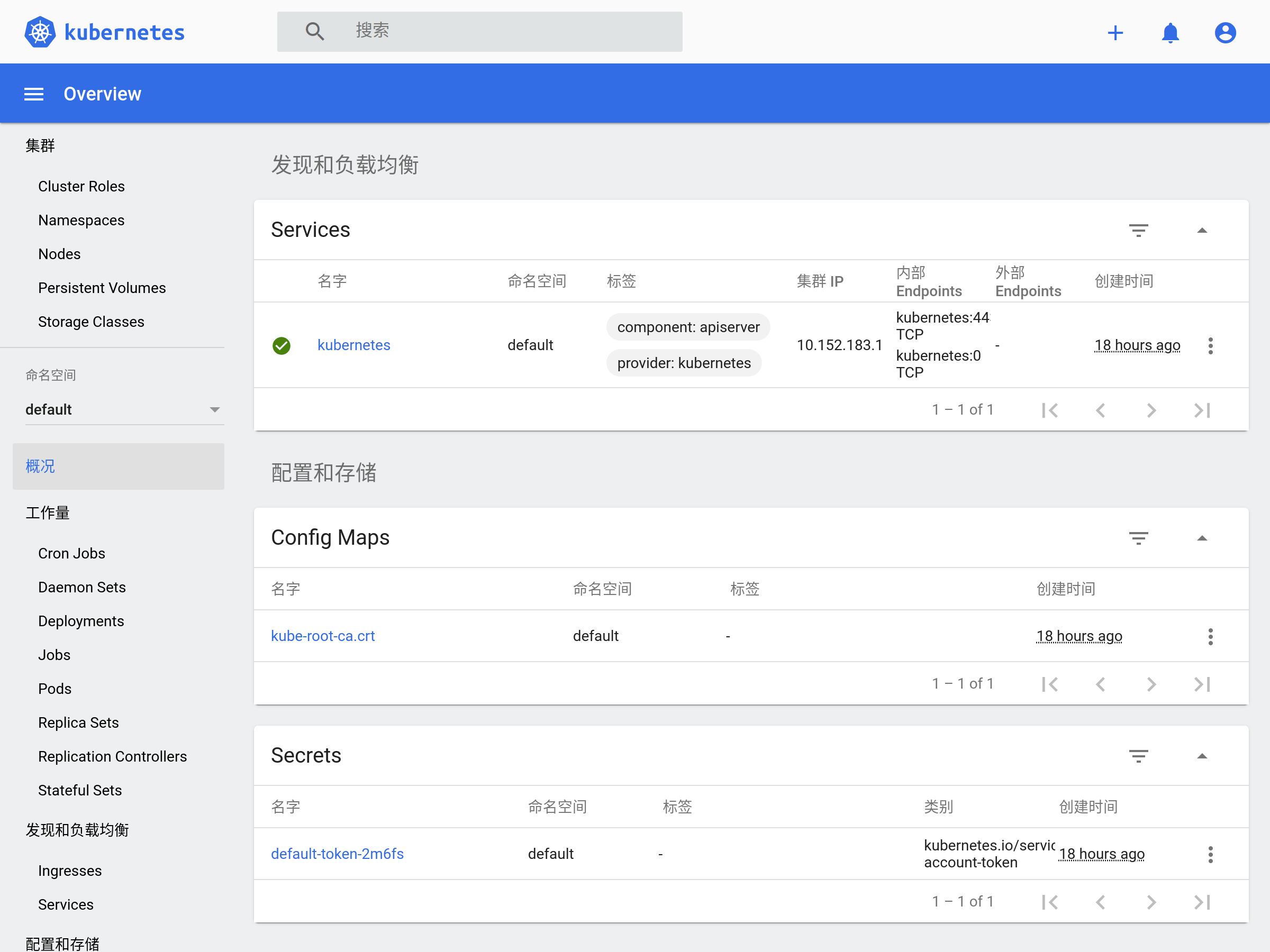
更多操作,請閱讀官方文檔。本文之后仍以 k3d 為例。
准備 K8s 應用
Go 應用
http_server.go:
package main import ( "fmt" "log" "net/http" ) func handler(w http.ResponseWriter, r *http.Request) { fmt.Fprintf(w, "Hi there, I love %s!", r.URL.Path[1:]) } func main() { http.HandleFunc("/", handler) fmt.Println("HTTP Server running ...") log.Fatal(http.ListenAndServe(":3000", nil)) } 構建鏡像
http_server.dockerfile:
FROM golang:1.17-alpine AS builder WORKDIR /app ADD ./http_server.go /app RUN cd /app && go build http_server.go FROM alpine:3.14 WORKDIR /app COPY --from=builder /app/http_server /app/ EXPOSE 3000 ENTRYPOINT ./http_server # 編譯鏡像 docker build -t http_server:1.0 -f http_server.dockerfile . # 運行應用 docker run --rm -p 3000:3000 http_server:1.0 # 測試應用 ❯ curl http://127.0.0.1:3000/go Hi there, I love go! 部署 K8s 應用
了解概念
之后,參照官方教程,我們將使用 Deployment 運行 Go 應用(無狀態)。
導入鏡像
首先,我們手動導入鏡像進集群:
docker save http_server:1.0 > http_server:1.0.tar
k3d image import http_server:1.0.tar -c mycluster
如果有自己的私有倉庫,參見 k3d / Registries 進行配置。
創建 Deployment
# 配置 Deployment (2個副本) cat <<EOF > go-http-deployment.yaml apiVersion: apps/v1 kind: Deployment metadata: name: go-http labels: app: go-http spec: replicas: 2 selector: matchLabels: app: go-http template: metadata: labels: app: go-http spec: containers: - name: go-http image: http_server:1.0 ports: - containerPort: 3000 EOF # 應用 Deployment # --record: 記錄命令 kubectl apply -f go-http-deployment.yaml --record 查看 Deployment:
# 查看 Deployment ❯ kubectl get deploy NAME READY UP-TO-DATE AVAILABLE AGE nginx 1/1 1 1 2d go-http 2/2 2 2 22s # 查看 Deployment 信息 kubectl describe deploy go-http # 查看 Deployment 創建的 ReplicaSet (2個) kubectl get rs # 查看 Deployment 創建的 Pods (2個) kubectl get po -l app=go-http -o wide --show-labels # 查看某一 Pod 信息 kubectl describe po go-http-5848d49c7c-wzmxh 創建 Service
# 創建 Service,名為 go-http # 將請求代理到 app=go-http, tcp=3000 的 Pod 上 kubectl expose deployment go-http --name=go-http # 或 cat <<EOF | kubectl create -f - apiVersion: v1 kind: Service metadata: name: go-http labels: app: go-http spec: selector: app: go-http ports: - protocol: TCP port: 3000 targetPort: 3000 EOF # 查看 Service kubectl get svc # 查看 Service 信息 kubectl describe svc go-http # 查看 Endpoints 對比看看 # kubectl get ep go-http # kubectl get po -l app=go-http -o wide # 刪除 Service (如果) kubectl delete svc go-http 訪問 Service (DNS):
❯ kubectl run curl --image=radial/busyboxplus:curl -i --tty

If you don't see a command prompt, try pressing enter. [ root@curl:/ ]$ nslookup go-http Server: 10.43.0.10 Address 1: 10.43.0.10 kube-dns.kube-system.svc.cluster.local Name: go-http Address 1: 10.43.102.17 go-http.default.svc.cluster.local [ root@curl:/ ]$ curl http://go-http:3000/go Hi there, I love go!
暴露 Service (Ingress):
# 創建 Ingress Object cat <<EOF | kubectl apply -f - apiVersion: networking.k8s.io/v1 kind: Ingress metadata: name: go-http annotations: ingress.kubernetes.io/ssl-redirect: "false" spec: rules: - http: paths: - path: /go pathType: Prefix backend: service: name: go-http port: number: 3000 EOF # 查看 Ingress kubectl get ingress # 查看 Ingress 信息 kubectl describe ingress go-http # 刪除 Ingress (如果) kubectl delete ingress go-http 訪問 Service (Ingress):
❯ open http://127.0.0.1:8080/go
# 或, ❯ curl http://127.0.0.1:8080/go Hi there, I love go! # Nginx 是在 http://127.0.0.1:8080 更新
僅當 Deployment Pod 模板發生改變時,例如模板的標簽或容器鏡像被更新,才會觸發 Deployment 上線。其他更新(如對 Deployment 執行擴縮容的操作)不會觸發上線動作。
所以,我們准備 http_server:2.0 鏡像導入集群,然后更新:
❯ kubectl set image deployment/go-http go-http=http_server:2.0 --record deployment.apps/go-http image updated 之后,可以查看上線狀態:
# 查看上線狀態 ❯ kubectl rollout status deployment/go-http deployment "go-http" successfully rolled out # 查看 ReplicaSet 狀態:新的擴容,舊的縮容,完成更新 ❯ kubectl get rs NAME DESIRED CURRENT READY AGE go-http-586694b4f6 2 2 2 10s go-http-5848d49c7c 0 0 0 6d 測試服務:
❯ curl http://127.0.0.1:8080/go
Hi there v2, I love go!
回滾
查看 Deployment 修訂歷史:
❯ kubectl rollout history deployment.v1.apps/go-http deployment.apps/go-http REVISION CHANGE-CAUSE 1 kubectl apply --filename=go-http-deployment.yaml --record=true 2 kubectl set image deployment/go-http go-http=http_server:2.0 --record=true # 查看修訂信息 kubectl rollout history deployment.v1.apps/go-http --revision=2 回滾到之前的修訂版本:
# 回滾到上一版 kubectl rollout undo deployment.v1.apps/go-http # 回滾到指定版本 kubectl rollout undo deployment.v1.apps/go-http --to-revision=1 縮放
# 縮放 Deployment 的 ReplicaSet 數 kubectl scale deployment.v1.apps/go-http --replicas=10 # 如果集群啟用了 Pod 的水平自動縮放,可以根據現有 Pods 的 CPU 利用率選擇上下限 # Horizontal Pod Autoscaler Walkthrough # https://kubernetes.io/docs/tasks/run-application/horizontal-pod-autoscale-walkthrough/ kubectl autoscale deployment.v1.apps/nginx-deployment --min=10 --max=15 --cpu-percent=80 暫停、恢復
# 暫停 Deployment kubectl rollout pause deployment.v1.apps/go-http # 恢復 Deployment kubectl rollout resume deployment.v1.apps/go-http 期間可以更新 Deployment ,但不會觸發上線。
刪除
kubectl delete deployment go-http
金絲雀部署
灰度部署,用多標簽區分多個部署,新舊版可同時運行。部署新版時,用少量流量驗證,沒問題再全量更新。
Helm 發布
Helm 是 K8s 的包管理工具,包格式稱為 charts。現在來發布我們的 Go 服務吧。
安裝 Helm
# macOS brew install helm # Ubuntu sudo snap install helm --classic 執行 helm 了解命令。
創建 Chart
helm create go-http
查看內容:
❯ tree go-http -aF --dirsfirst
go-http
├── charts/     # 包依賴的 charts,稱 subcharts ├── templates/ # 包的 K8s 文件模板,用的 Go 模板 │ ├── tests/ │ │ └── test-connection.yaml │ ├── NOTES.txt # 包的幫助文本 │ ├── _helpers.tpl # 模板可重用的片段,模板里 include 引用 │ ├── deployment.yaml │ ├── hpa.yaml │ ├── ingress.yaml │ ├── service.yaml │ └── serviceaccount.yaml ├── .helmignore # 打包忽略說明 ├── Chart.yaml # 包的描述文件 └── values.yaml # 變量默認值,可安裝時覆蓋,模板里 .Values 引用
修改內容:
- 修改
Chart.yaml里的描述 - 修改
values.yaml里的變量- 修改
image為發布的 Go 服務 - 修改
ingress為true,及一些配置 - 刪除
serviceAccountautoscaling,templates/里也搜索刪除相關內容
- 修改
- 修改
templates/里的模板- 刪除
tests/,剩余deployment.yamlservice.yamlingress.yaml有用
- 刪除
結果可見 start-k8s/helm/go-http。
檢查錯誤:
❯ helm lint --strict go-http
==> Linting go-http
[INFO] Chart.yaml: icon is recommended

1 chart(s) linted, 0 chart(s) failed
渲染模板:
# --set 覆蓋默認配置,或者用 -f 選擇自定的 values.yaml helm template go-http-helm ./go-http \ --set replicaCount=2 \ --set "ingress.hosts[0].paths[0].path=/helm" \ --set "ingress.hosts[0].paths[0].pathType=Prefix" 安裝 Chart:
helm install go-http-helm ./go-http \
--set replicaCount=2 \ --set "ingress.hosts[0].paths[0].path=/helm" \ --set "ingress.hosts[0].paths[0].pathType=Prefix" # 或,打包后安裝 helm package go-http helm install go-http-helm go-http-1.0.0.tgz \ --set replicaCount=2 \ --set "ingress.hosts[0].paths[0].path=/helm" \ --set "ingress.hosts[0].paths[0].pathType=Prefix" # 查看安裝列表 helm list
測試服務:
❯ kubectl get deploy go-http-helm
NAME           READY   UP-TO-DATE   AVAILABLE   AGE
go-http-helm   2/2     2            2           2m42s

❯ curl http://127.0.0.1:8080/helm
Hi there, I love helm!
卸載 Chart:
helm uninstall go-http-helm
發布 Chart
官方倉庫 ArtifactHub 上有很多分享的 Helm charts 。可見 velkoz1108/helm-chart 把我們的 Go 服務發布到 Hub 上。
最后
開始 K8s 吧!本文樣例在 ikuokuo/start-k8s。
GoCoding 個人實踐的經驗分享,可關注公眾號!