
對於沒有子元素或不需要子元素的 HTML 標簽,通常寫成其自閉合的形式會顯得簡潔些,
- <SomeComponent></SomeComponent>
+ <SomeComponent/>
通過配置 ESLint 可在格式化的時候將標簽自動變成自閉合形式。
create-react-app
如果是使用 create-react-app 創建的項目,直接在 package.json 的 eslint 配置部分加上如下配置即可:
  "eslintConfig": {
    "extends": "react-app",
+   "rules": {
+     "react/self-closing-comp": [
+       "error"
+     ]
    }
安裝依賴
安裝 ESLint 相關依賴:
$ yarn add eslint eslint-plugin-react
如果是 TypeScript 項目,還需要安裝如下插件:
$ yarn add @typescript-eslint/eslint-plugin @typescript-eslint/parser
配置 ESLint
通過 yarn eslint --init 向導來完成創建,
或手動創建 .eslintrc.json 填入如下配置:
{
  "extends": ["eslint:recommended", "plugin:react/recommended"],
  "parser": "@typescript-eslint/parser",
  "plugins": ["react", "@typescript-eslint"],
  "rules": {
    "react/self-closing-comp": ["error"]
  }
}
安裝 ESLint for Vscode
當然了,還需要安裝 VSCode 插件 dbaeumer.vscode-eslint。
然后配置 VSCode 在保存時自動進行修正動作:
"editor.codeActionsOnSave": {
    "source.fixAll.eslint": true
  },
使用
完成上述配置后,如果發現保存時,格式並未生效,或者只 JavaScript 文件生效,需要補上如下的 VSCode 配置:
"eslint.validate": [
    "javascript",
    "javascriptreact",
    "typescript",
    "typescriptreact",
  ]
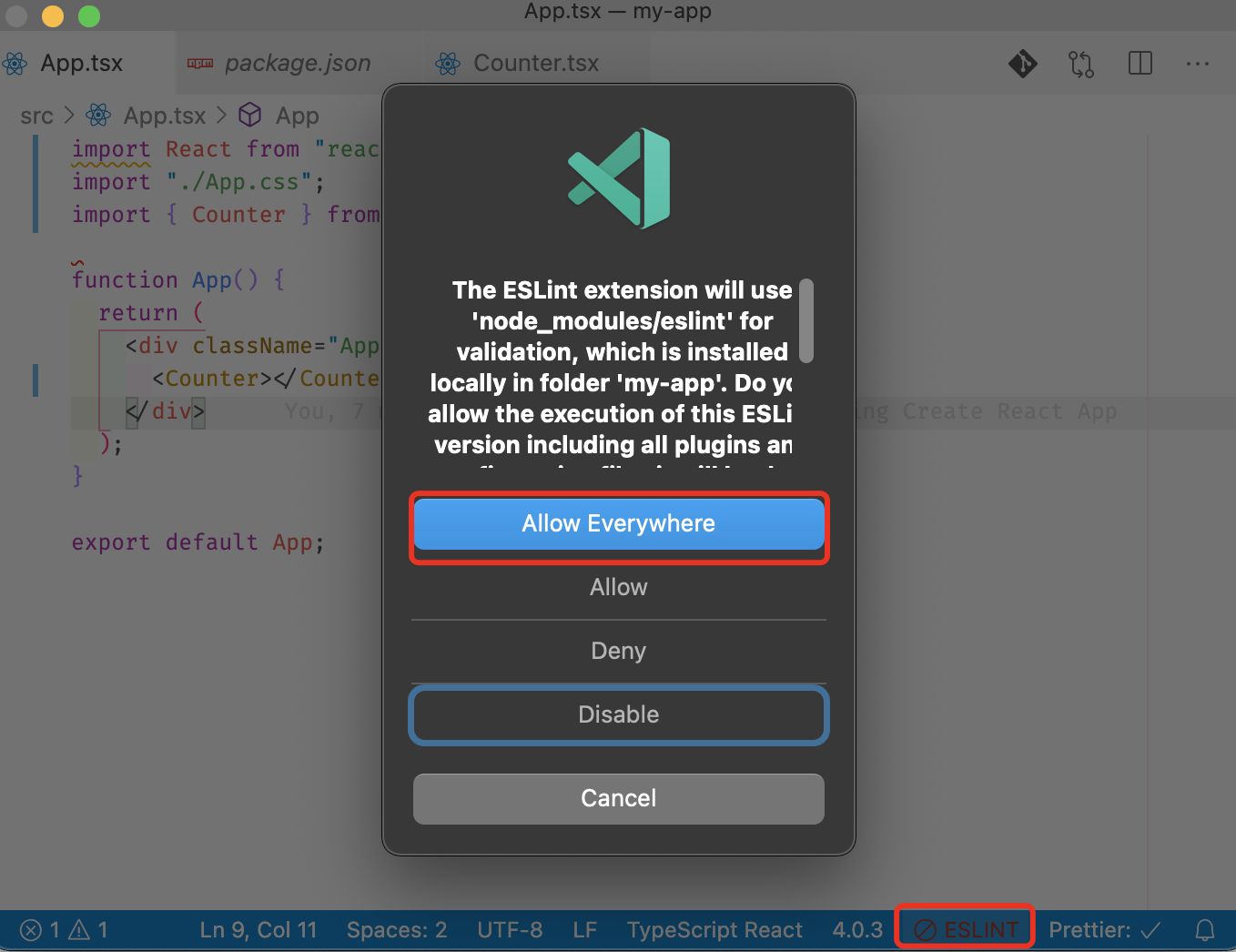
也可查看 VSCode 的狀態欄,看是否有報錯可確定是什么原因導致 ESLint 工作不正常,比如 mac BigSur 中細化了權限,需要點擊警告圖標然后點擊允許。
相關資源
The text was updated successfully, but these errors were encountered: