
使用CEF(二)— 基於VS2019編寫一個簡單CEF樣例
在這一節中,本人將會在Windows下使用VS2019創建一個空白的C++Windows Desktop Application項目,逐步進行修改配置和代碼編寫,並在這個過程中介紹vs使用過程中和C++項目的結合。源碼見文章末尾Github鏈接。
前提
你已經閱讀過《使用CEF(1)— 起步》,你可以在這些地方讀到:知乎鏈接、cnblogs。或,你知道如何獲得libcef的庫以及libcef_dll_wrapper靜態庫。
文件准備
接下來,本人將以Debug的模式下完成代碼的開發工作。在Release下是同樣的步驟,但是需要注意的是你所選擇的目標是Debug或是Release都需要和libcef庫以及libcef_dll_wrapper完全一致。
- 現在,你需要libcef庫文件相關文件,它來自於:
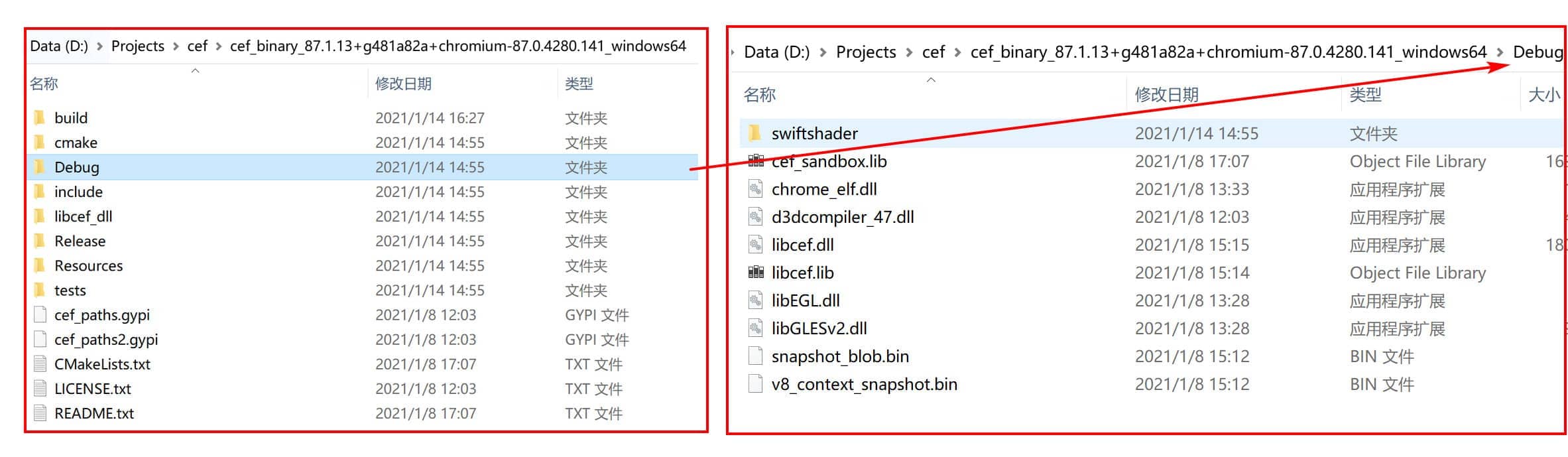
- 你需要使用libcef_dll_wrapper靜態庫文件,它來自於你編譯出來的靜態庫:

- 你需要libcef與wrapper的include文件,它來自於:
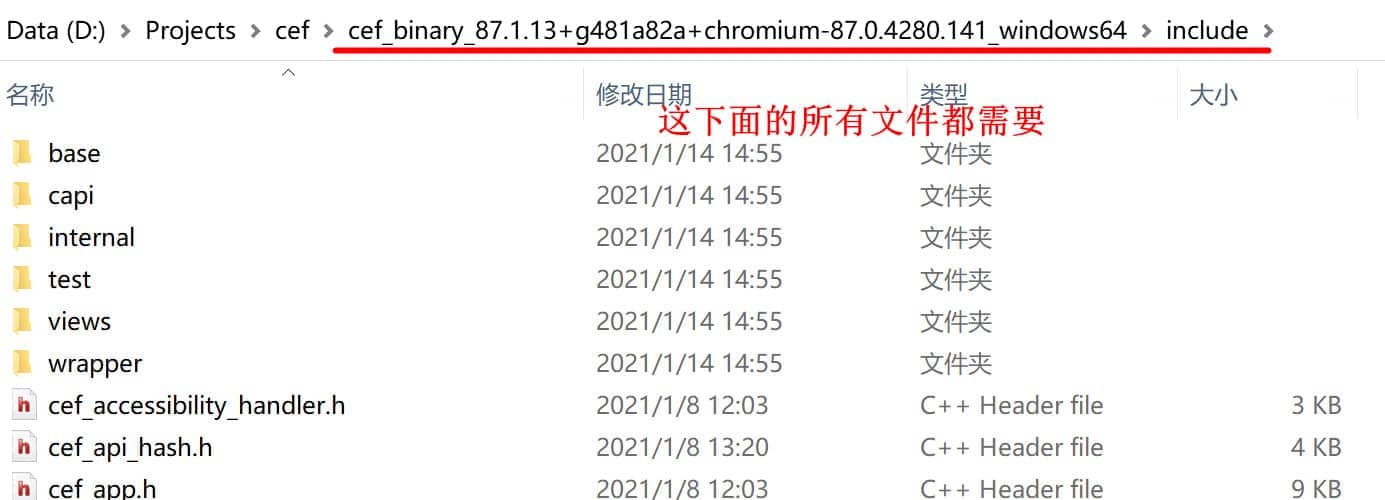
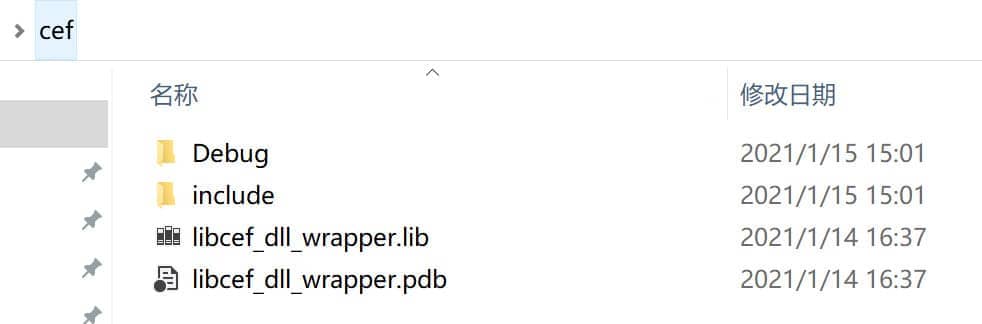
接下來我們創建一個名為cef的文件夾,並且把上述提到的文件夾和文件放到該目錄下:
cef
│  libcef_dll_wrapper.lib
│  libcef_dll_wrapper.pdb
│
├─Debug
│  │  ......
│  │  libcef.dll
│  │  libcef.lib
│  │  libEGL.dll
│  │  libGLESv2.dll
│  │  ......
│  │
│  └─swiftshader
│          libEGL.dll
│          libGLESv2.dll
│
└─include
    │  cef_accessibility_handler.h
    │  cef_api_hash.h
    │  cef_app.h
    │  cef_audio_handler.h
    |  .....
基礎文件創建完成后,我們開始編寫一個簡單的基於CEF的程序吧!
項目創建
創建一個Windows桌面應用程序
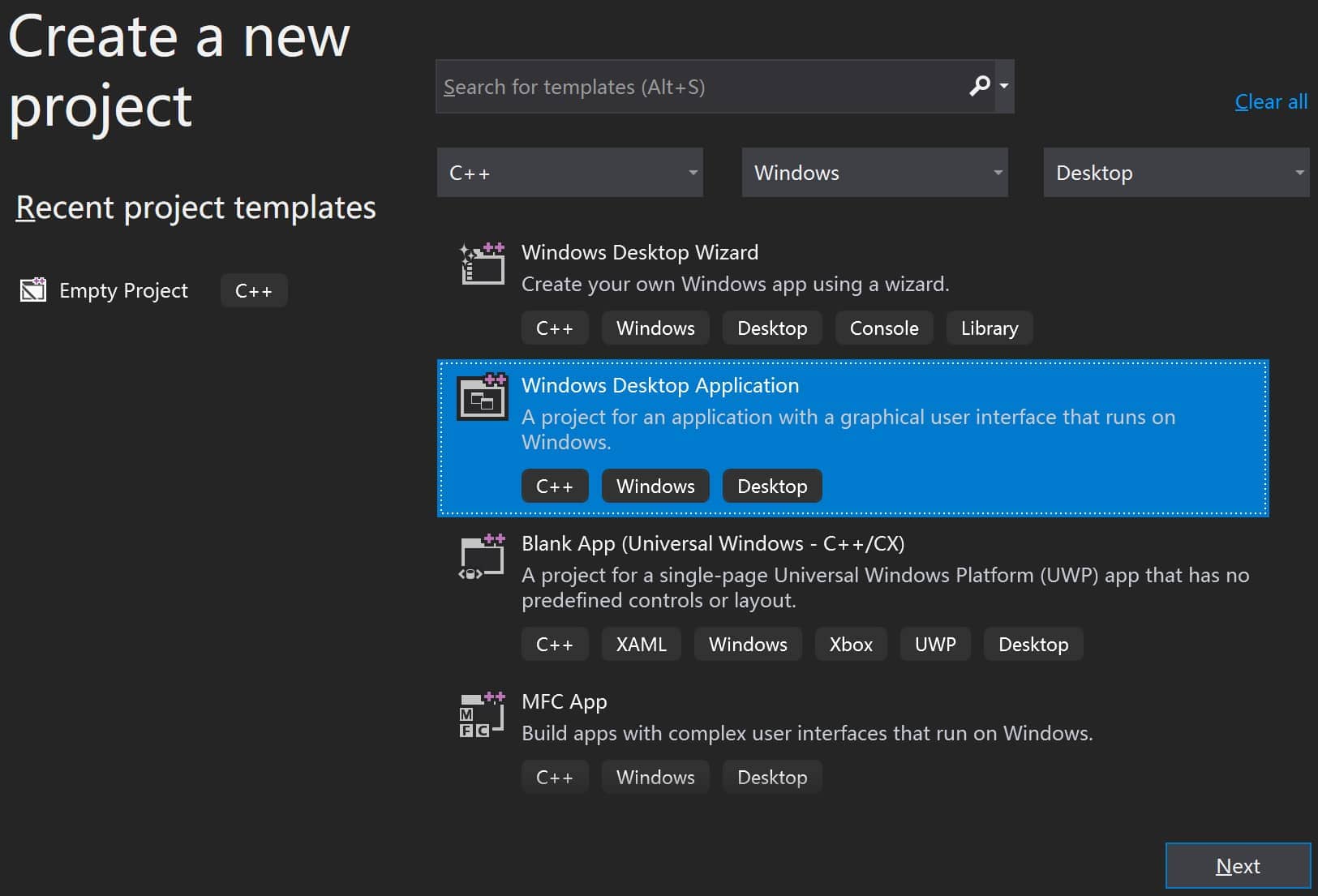
創建一個名為simple-cef的項目
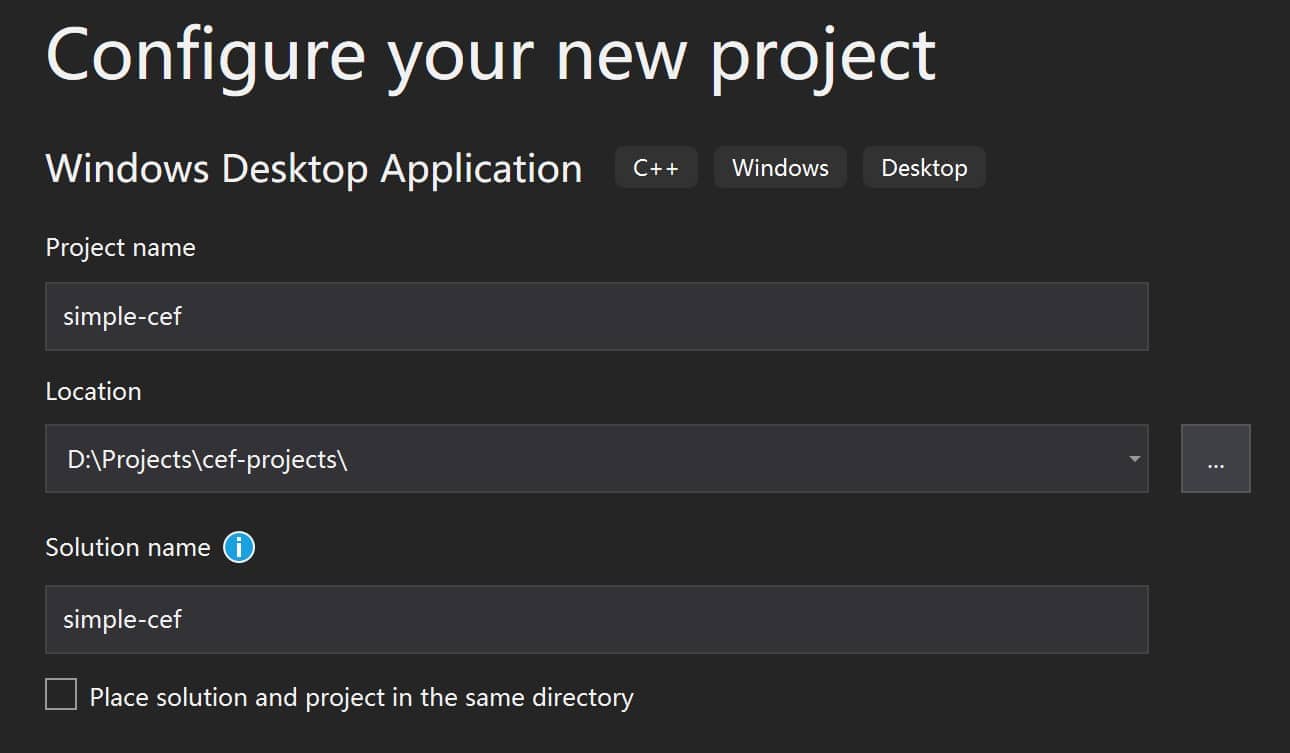
創建完成后,我們刪除所有模板生成的代碼,得到一個完全空白的應用程序項目:
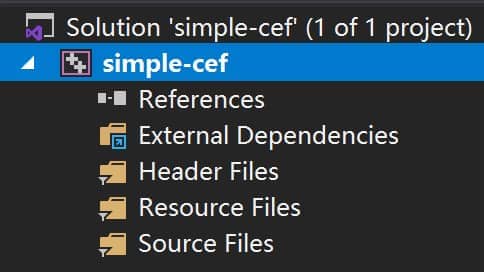
依賴添加
頭文件添加
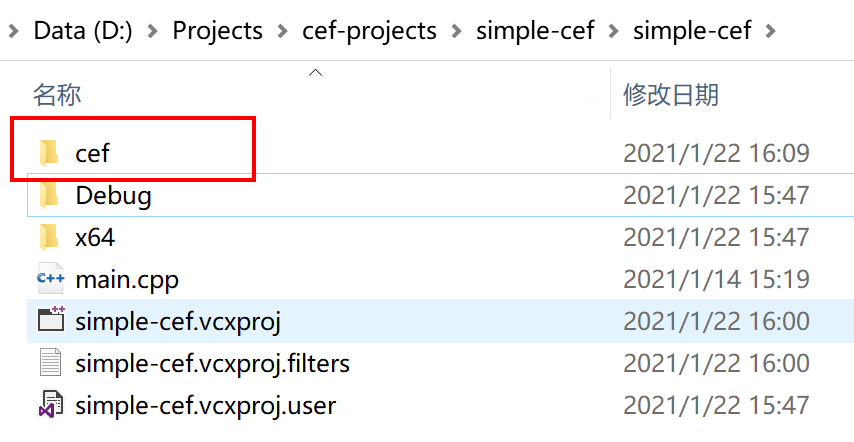
眾所周知,C/C++頭文件作為聲明定義,對於編譯過程有着舉足輕重的位置。當我們引入CEF編譯我們的項目時候,首先需要include正確位置的頭文件,才能實現編譯(狹義的編譯,不包括鏈接)。我們首先把上述做好的cef文件夾放到項目所在目錄下,也就是說我們把cef的inlucde頭文件以及靜態庫文件全都加到了項目中:
然后,在VS中,我們通過如下的方式為我們的項目引入CEF的頭文件:
右鍵項目 — properties — C/C++ — General — Additional Include Directories
PS:如果你發現沒有C/C++分類,是因為你沒有創建任何的源代碼文件,官方FAQ。所以我們在Source Files目錄下先創建一個main.cpp,然后繼續上述的配置。

PS:這里本人使用了$(ProjectDir),它是一個VS宏變量,返回項目所在目錄(即,vcxproj所在目錄),且目錄末尾帶反斜杠\。從上面的Evaluated value里面展示的經過實際計算得到的值,可以驗證我們配置是否正確。這里正確的返回了我們放在項目目錄下的cef文件夾。
這里只需要添加到cef文件夾這一層級,是因為cef/include里面的頭文件在include的時候,采用了對應的"include/xxx.h",即需要從引入目錄中找到include文件夾,里面查找xxx.h頭文件。當我們指定到了cef層級后,就能夠使得編譯器正確處理cef頭文件中include的位置。
這里以$(ProjectDir)cef/include/cef_broweser.h這個頭文件舉例:
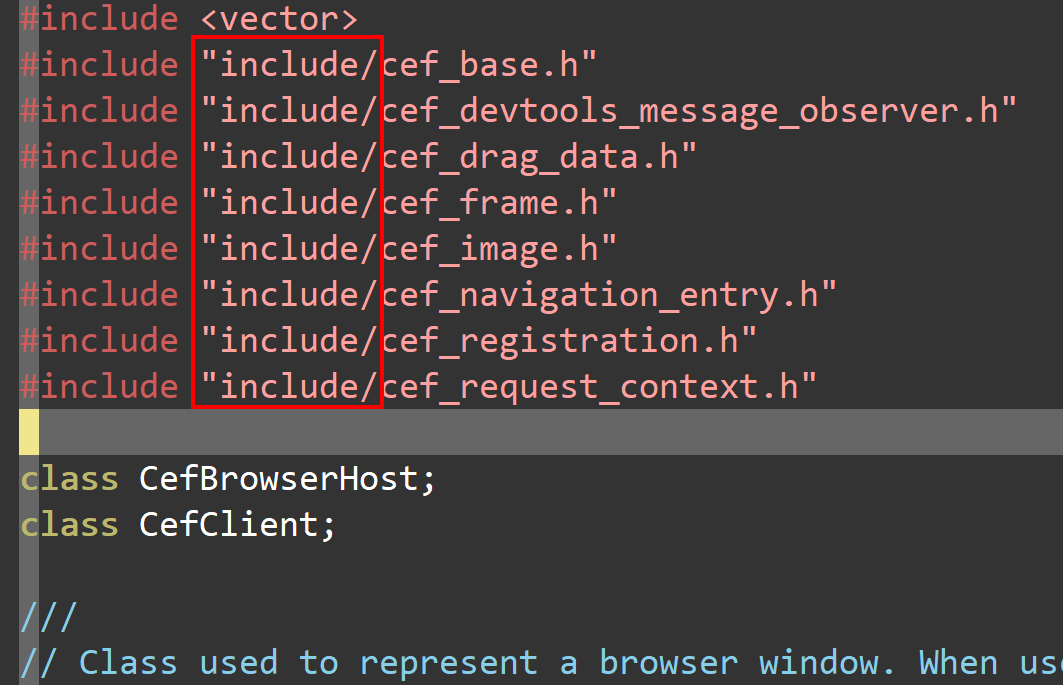
當編譯器發現里面的#include預編譯命令后,會從頭文件目錄中去查找,即希望從上述配置的\((ProjectDir)cef/**以及默認目錄下查找,默認的項目目錄應該是找不到了,但是可以在**\)(ProjectDir)cef/目錄下找到include/cef_base.h等文件,因為$(ProjectDir)cef/include/cef_base.h確實是正確的文件路徑。因此,上述額外的include文件夾只需要指定到cef層級即可。
庫文件添加
完成頭文件的添加后,我們還需要添加鏈接目標,即cef的靜態庫。添加方式為:
properties — Linker — Input— Additional Dependencies
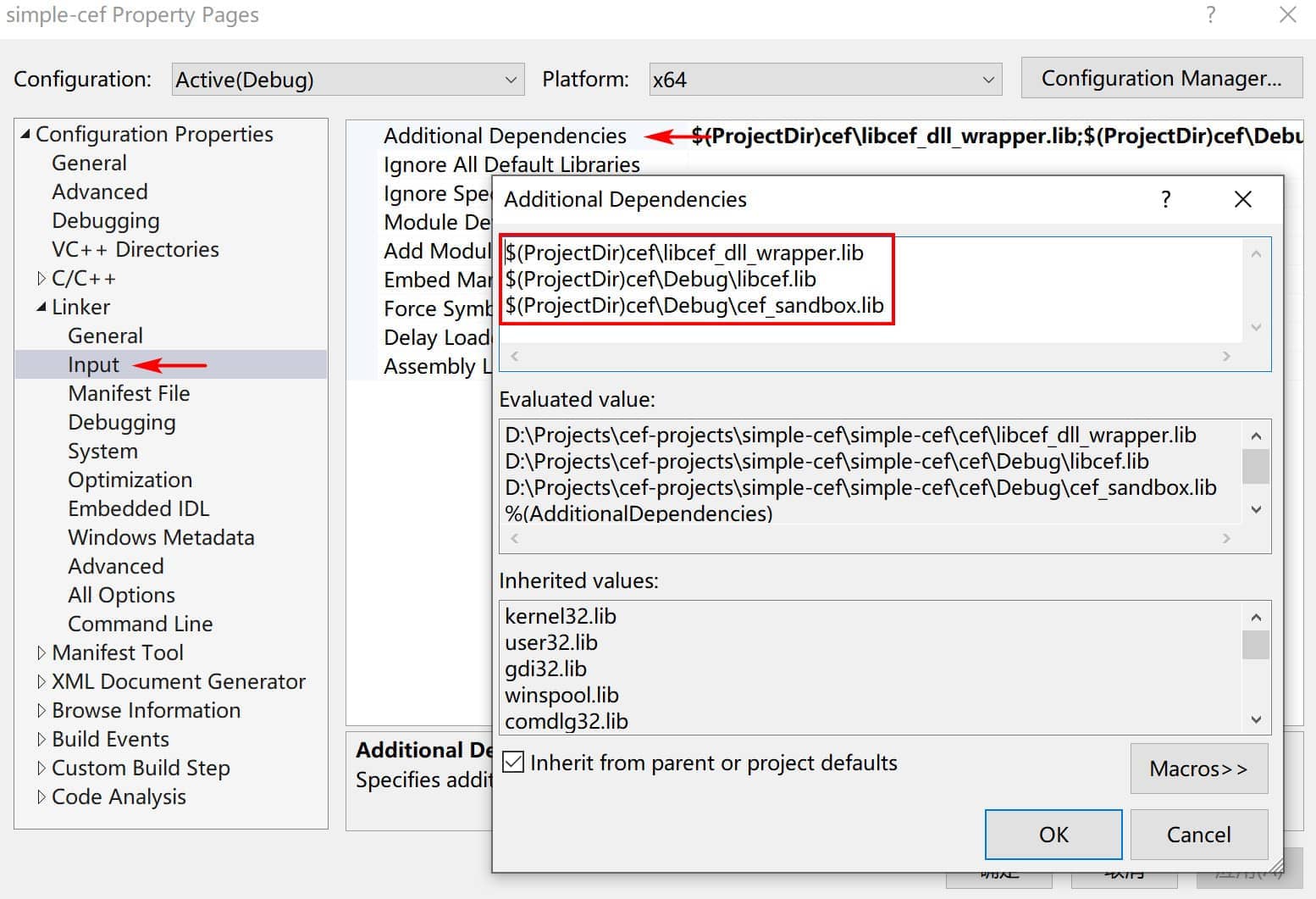
同樣使用宏變量來指定對應的lib靜態庫:libcef_dll_wrapper.lib、libcef.lib、cef_sandbox.lib。
通過上述的庫文件添加,我們就完成了編譯(狹義,頭文件查找)——鏈接(庫文件鏈接)這兩個步驟的配置了,接下來就是進一步,開始我們的代碼編寫之路。
代碼編寫與說明
CEF的整體架構以及CefApp以及CefClient的概念可以參考該倉庫里面的文檔,或者是閱讀官方文檔。接下來將使用cefsimple代碼進行解釋說明,並適當增加一些小的細節。
simple_app
simple_app.h
#ifndef SIMPLE_APP_H
#define SIMPLE_APP_H
#pragma once

#include "include/cef_app.h"

// Implement application-level callbacks for the browser process.
class SimpleApp : public CefApp, public CefBrowserProcessHandler {
public:
    SimpleApp();

    // CefApp methods:
    virtual CefRefPtr<CefBrowserProcessHandler> GetBrowserProcessHandler()
        OVERRIDE {
        return this;
    }

    // CefBrowserProcessHandler methods:
    virtual void OnContextInitialized() OVERRIDE;

private:
    // Include the default reference counting implementation.
    IMPLEMENT_REFCOUNTING(SimpleApp);
};

#endif
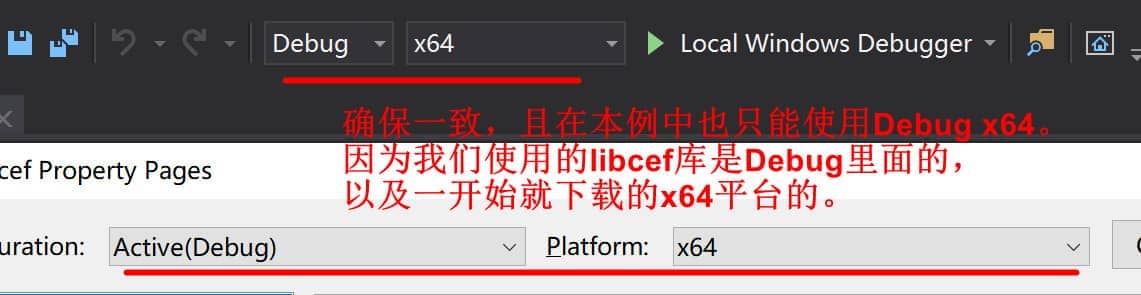
這里引入的時候,如果發現VS提示,#include "include/cef_app.h"無效,首先檢查上述的對項目的配置是否正確!上述項目Properties中配置的平台是x64,VS中也請選擇一致的平台。而且在本Demo是無法使用32位的,因為我們下載的靜態庫是x64位的。
simple_app.cpp
在simple_app的實現中,主要需要提供3個部分的代碼實現:
- CefWindowDelegate
- CefBrowserViewDelegate
- SimpleApp
CefWindowDelegate與CefBrowserViewDelegate
Cef窗體代理以及Cef瀏覽器視圖代理,他們是CEF提供的一套圖形視圖框架。這一套圖形接口目前在Windows和Linux上支持了,所以在Windows和Linux我們完全可以不用選擇原生的窗體框架(例如在Windows上的WinForm和Linux上的QT之類的),而是直接使用CEF提供的圖形視圖框架。而CEF的圖形視圖框架的內部實現原理我們暫時不需要知道,可以把它們想象成一些窗體和控件對象,它們需要在SimpleApp中的實現用到,所以也寫在了simple_app.cpp中。相關代碼如下:
// SimpleBrowserViewDelegate
// 繼承CefBrowserViewDelegate,即CEF瀏覽器視圖代理。
// 該代理由CEF屏蔽細節,只暴露出視圖控件指定的接口回調供我們實現即可
class SimpleBrowserViewDelegate : public CefBrowserViewDelegate
{
public:
    SimpleBrowserViewDelegate()
    {
    }

    bool OnPopupBrowserViewCreated(CefRefPtr<CefBrowserView> browser_view,
                                   CefRefPtr<CefBrowserView> popup_browser_view,
                                   bool is_devtools) OVERRIDE
    {
        // Create a new top-level Window for the popup. It will show itself after
        // creation.
        CefWindow::CreateTopLevelWindow(
            new SimpleWindowDelegate(popup_browser_view));

        // We created the Window.
        return true;
    }

private:
    IMPLEMENT_REFCOUNTING(SimpleBrowserViewDelegate);
    DISALLOW_COPY_AND_ASSIGN(SimpleBrowserViewDelegate);
};
// SimpleWindowDelegate
// 繼承CefWindowDelegate,即CEF窗口代理。
// 該代理由CEF屏蔽細節,只暴露窗口一些接口回調供我們實現即可。
class SimpleWindowDelegate : public CefWindowDelegate
{
public:
    explicit SimpleWindowDelegate(CefRefPtr<CefBrowserView> browser_view)
        : browser_view_(browser_view)
        {
        }
	// 窗體創建時
    void OnWindowCreated(CefRefPtr<CefWindow> window) OVERRIDE
    {
        // Add the browser view and show the window.
        window->AddChildView(browser_view_);
        window->Show();

        // Give keyboard focus to the browser view.
        browser_view_->RequestFocus();
    }
	// 窗體銷毀時
    void OnWindowDestroyed(CefRefPtr<CefWindow> window) OVERRIDE
    {
        browser_view_ = nullptr;
    }
	// 窗體是否可以關閉
    bool CanClose(CefRefPtr<CefWindow> window) OVERRIDE
    {
        // Allow the window to close if the browser says it's OK.
        CefRefPtr<CefBrowser> browser = browser_view_->GetBrowser();
        if (browser)
            return browser->GetHost()->TryCloseBrowser();
        return true;
    }
	// 獲取窗體展示的最佳尺寸
    CefSize GetPreferredSize(CefRefPtr<CefView> view) OVERRIDE
    {
        return CefSize(800, 600);
    }

private:
    CefRefPtr<CefBrowserView> browser_view_;

    IMPLEMENT_REFCOUNTING(SimpleWindowDelegate);
    DISALLOW_COPY_AND_ASSIGN(SimpleWindowDelegate);
};
SimpleApp
SimpleApp::SimpleApp()
{
}

void SimpleApp::OnContextInitialized()
{
    CEF_REQUIRE_UI_THREAD();

    CefRefPtr<CefCommandLine> command_line =
        CefCommandLine::GetGlobalCommandLine();

    const bool enable_chrome_runtime =
        command_line->HasSwitch("enable-chrome-runtime");

#if defined(OS_WIN) || defined(OS_LINUX)
    // Create the browser using the Views framework if "--use-views" is specified
    // via the command-line. Otherwise, create the browser using the native
    // platform framework. The Views framework is currently only supported on
    // Windows and Linux.
    const bool use_views = command_line->HasSwitch("use-views");
#else
    const bool use_views = false;
#endif

    // SimpleHandler implements browser-level callbacks.
    CefRefPtr<SimpleClient> handler(new SimpleClient(use_views));

    // Specify CEF browser settings here.
    CefBrowserSettings browser_settings;

    std::string url;

    // Check if a "--url=" value was provided via the command-line. If so, use
    // that instead of the default URL.
    url = command_line->GetSwitchValue("url");
    if (url.empty())
        url = "https://www.cnblogs.com/w4ngzhen/";

    if (use_views && !enable_chrome_runtime)
    {
        // Create the BrowserView.
        CefRefPtr<CefBrowserView> browser_view = CefBrowserView::CreateBrowserView(
            handler, url, browser_settings, nullptr, nullptr,
            new SimpleBrowserViewDelegate());

        // Create the Window. It will show itself after creation.
        CefWindow::CreateTopLevelWindow(new SimpleWindowDelegate(browser_view));
    }
    else
    {
        // Information used when creating the native window.
        CefWindowInfo window_info;

#if defined(OS_WIN)
        // On Windows we need to specify certain flags that will be passed to
        // CreateWindowEx().
        window_info.SetAsPopup(NULL, "simple-cef by w4ngzhen");
#endif

        // Create the first browser window.
        CefBrowserHost::CreateBrowser(window_info, handler, url, browser_settings,
                                      nullptr, nullptr);
    }
}
simple_client
simple_client.h
#ifndef SIMPLE_CLIENT_H
#define SIMPLE_CLIENT_H

#include "include/cef_client.h"

#include <list>

class SimpleClient : public CefClient,
                     public CefDisplayHandler,
                     public CefLifeSpanHandler,
                     public CefLoadHandler
{
public:
	explicit SimpleClient(bool use_views);
	~SimpleClient();

	static SimpleClient* GetInstance();

	virtual CefRefPtr<CefDisplayHandler> GetDisplayHandler() OVERRIDE
	{ return this; }

	virtual CefRefPtr<CefLifeSpanHandler> GetLifeSpanHandler() OVERRIDE
	{ return this; }

	virtual CefRefPtr<CefLoadHandler> GetLoadHandler() OVERRIDE { return this; }

	// CefDisplayHandler的實現聲明:
	virtual void OnTitleChange(CefRefPtr<CefBrowser> browser,
	                           const CefString& title) OVERRIDE;
	// CefLifeSpanHandler的實現聲明:
	virtual void OnAfterCreated(CefRefPtr<CefBrowser> browser) OVERRIDE;
	virtual bool DoClose(CefRefPtr<CefBrowser> browser) OVERRIDE;
	virtual void OnBeforeClose(CefRefPtr<CefBrowser> browser) OVERRIDE;
	// CefLoadHandler的實現聲明:
	virtual void OnLoadError(CefRefPtr<CefBrowser> browser,
	                         CefRefPtr<CefFrame> frame,
	                         ErrorCode errorCode,
	                         const CefString& errorText,
	                         const CefString& failedUrl) OVERRIDE;

	void CloseAllBrowsers(bool force_close); // 請求將所有的已經存在的瀏覽器窗體進行關閉
	bool IsClosing() const { return is_closing_; }

private:
	// 平台特定的標題修改
    // 當我們沒有CEF的GUI視圖框架的時候,就需要特定平台的標題修改實現
    // 例如,Windows中需要我們獲取窗體句柄,調用Windows的API完成對該窗體的標題修改
	void PlatformTitleChange(CefRefPtr<CefBrowser> browser,
	                         const CefString& title);
	const bool use_views_; // 是否使用了CEF的GUI視圖框架
	// List of existing browser windows. Only accessed on the CEF UI thread.
	typedef std::list<CefRefPtr<CefBrowser>> BrowserList;
	BrowserList browser_list_;

	bool is_closing_;

	// Include the default reference counting implementation.
IMPLEMENT_REFCOUNTING(SimpleClient);
};

#endif
simple_client.cpp以及simple_client_os_win.cpp
這里我們提供了兩份源代碼,第一份是所有平台的通用實現,而第二份源碼從名稱可以看出跟特定的操作系統平台有關,這里就是Windows,為什么會有兩份源碼我們下文會逐步了解。
首先看simple_client.cpp的源代碼:
#include "simple_client.h"

#include <sstream>
#include <string>

#include "include/base/cef_bind.h"
#include "include/cef_app.h"
#include "include/cef_parser.h"
#include "include/views/cef_browser_view.h"
#include "include/views/cef_window.h"
#include "include/wrapper/cef_closure_task.h"
#include "include/wrapper/cef_helpers.h"

namespace
{
    SimpleClient* g_instance = nullptr;

    // Returns a data: URI with the specified contents.
    std::string GetDataURI(const std::string& data, const std::string& mime_type)
    {
        return "data:" + mime_type + ";base64," +
            CefURIEncode(CefBase64Encode(data.data(), data.size()), false)
            .ToString();
    }
} // namespace

SimpleClient::SimpleClient(bool use_views)
    : use_views_(use_views), is_closing_(false)
{
    DCHECK(!g_instance);
    g_instance = this;
}

SimpleClient::~SimpleClient()
{
    g_instance = nullptr;
}

// static
SimpleClient* SimpleClient::GetInstance()
{
    return g_instance;
}

void SimpleClient::OnTitleChange(CefRefPtr<CefBrowser> browser,
                                 const CefString& title)
{
    CEF_REQUIRE_UI_THREAD();

    if (use_views_)
    {
        // 如果使用CEF的GUI視圖框架,那么修改窗體的標題通過調用該視圖框架的API完成
        CefRefPtr<CefBrowserView> browser_view =
            CefBrowserView::GetForBrowser(browser);
        if (browser_view)
        {
            CefRefPtr<CefWindow> window = browser_view->GetWindow();
            if (window)
                window->SetTitle(title);
        }
    }
    else
    {
        // 否則使用特定平台窗體標題修改API
        // 詳情見simple_client_os_win.cpp
        PlatformTitleChange(browser, title);
    }
}

void SimpleClient::OnAfterCreated(CefRefPtr<CefBrowser> browser)
{
    CEF_REQUIRE_UI_THREAD();

    // Add to the list of existing browsers.
    browser_list_.push_back(browser);
}

bool SimpleClient::DoClose(CefRefPtr<CefBrowser> browser)
{
    CEF_REQUIRE_UI_THREAD();

    // Closing the main window requires special handling. See the DoClose()
    // documentation in the CEF header for a detailed destription of this
    // process.
    if (browser_list_.size() == 1)
    {
        // Set a flag to indicate that the window close should be allowed.
        is_closing_ = true;
    }

    // Allow the close. For windowed browsers this will result in the OS close
    // event being sent.
    return false;
}

void SimpleClient::OnBeforeClose(CefRefPtr<CefBrowser> browser)
{
    CEF_REQUIRE_UI_THREAD();

    // Remove from the list of existing browsers.
    BrowserList::iterator bit = browser_list_.begin();
    for (; bit != browser_list_.end(); ++bit)
    {
        if ((*bit)->IsSame(browser))
        {
            browser_list_.erase(bit);
            break;
        }
    }

    if (browser_list_.empty())
    {
        // All browser windows have closed. Quit the application message loop.
        CefQuitMessageLoop();
    }
}

void SimpleClient::OnLoadError(CefRefPtr<CefBrowser> browser,
                               CefRefPtr<CefFrame> frame,
                               ErrorCode errorCode,
                               const CefString& errorText,
                               const CefString& failedUrl)
{
    CEF_REQUIRE_UI_THREAD();

    // Don't display an error for downloaded files.
    if (errorCode == ERR_ABORTED)
        return;

    // Display a load error message using a data: URI.
    std::stringstream ss;
    ss << "<html><body bgcolor=\"white\">"
        "<h2>Failed to load URL "
        << std::string(failedUrl) << " with error " << std::string(errorText)
        << " (" << errorCode << ").</h2></body></html>";

    frame->LoadURL(GetDataURI(ss.str(), "text/html"));
}

void SimpleClient::CloseAllBrowsers(bool force_close)
{
    if (!CefCurrentlyOn(TID_UI))
    {
        // Execute on the UI thread.
        CefPostTask(TID_UI, base::Bind(&SimpleClient::CloseAllBrowsers, this,
                                       force_close));
        return;
    }

    if (browser_list_.empty())
        return;

    BrowserList::const_iterator it = browser_list_.begin();
    for (; it != browser_list_.end(); ++it)
        (*it)->GetHost()->CloseBrowser(force_close);
}
上述代碼有重要部分為函數SimpleClient::OnTitleChange的實現。在該實現代碼中,通過判斷變量use_views_來決定是否使用CEF提供的視圖框架,也就有了下面兩種情況:
- 使用了CEF提供的視圖框架:在這種情況下,窗體的標題改變直接使用CEF視圖框架提供的API完成修改;
- 未使用CEF提供的視圖框架:在這種情況下,我們一定用了原生的窗體框架或者是第三方的(QT或者GTK+),那么就需要調用相關原生窗體的API或者第三方的API來完成窗體標題的修改。
由於存在上面的情況2,才有了下面的simple_client_os_win.cpp的代碼。(PS:上面的代碼並沒有實現頭文件里面的PlatformTitleChange聲明喲,只是調用了而已)
// simple_client_os_win.cpp代碼
#include "simple_client.h"

#include <windows.h>
#include <string>

#include "include/cef_browser.h"

void SimpleClient::PlatformTitleChange(CefRefPtr<CefBrowser> browser,
    const CefString& title) {
    // 通過GetHost()來獲取CEF瀏覽器對象的宿主對象(這里就是Windows原生窗體)
    // 再獲取對應的窗體句柄
    // 通過#include <windows.h>得到的WindowsAPI完成標題修改
    CefWindowHandle hwnd = browser->GetHost()->GetWindowHandle();
    if (hwnd)
        SetWindowText(hwnd, std::wstring(title).c_str());
}
這段代碼實際上跟特定的平台有關,這里就是Windows平台。
- 通過GetHost()來獲取CEF瀏覽器對象的宿主對象(這里就是Windows原生窗體);
- 再獲取對應的窗體句柄;
- 通過#include <windows.h>得到的WindowsAPI完成標題修改。
入口代碼main.cpp
編寫完成上述的CEF應用模塊后,我們最后編寫入口代碼。
// Copyright (c) 2013 The Chromium Embedded Framework Authors. All rights
// reserved. Use of this source code is governed by a BSD-style license that
// can be found in the LICENSE file.

#include <windows.h>

#include "include/cef_command_line.h"
#include "include/cef_sandbox_win.h"
#include "simple_app.h"

// When generating projects with CMake the CEF_USE_SANDBOX value will be defined
// automatically if using the required compiler version. Pass -DUSE_SANDBOX=OFF
// to the CMake command-line to disable use of the sandbox.
// Uncomment this line to manually enable sandbox support.
// #define CEF_USE_SANDBOX 1

#if defined(CEF_USE_SANDBOX)
// The cef_sandbox.lib static library may not link successfully with all VS
// versions.
#pragma comment(lib, "cef_sandbox.lib")
#endif

// Entry point function for all processes.
int APIENTRY wWinMain(HINSTANCE hInstance,
    HINSTANCE hPrevInstance,
    LPTSTR lpCmdLine,
    int nCmdShow) {
    UNREFERENCED_PARAMETER(hPrevInstance);
    UNREFERENCED_PARAMETER(lpCmdLine);

    // Enable High-DPI support on Windows 7 or newer.
    CefEnableHighDPISupport();

    void* sandbox_info = nullptr;

#if defined(CEF_USE_SANDBOX)
    // Manage the life span of the sandbox information object. This is necessary
    // for sandbox support on Windows. See cef_sandbox_win.h for complete details.
    CefScopedSandboxInfo scoped_sandbox;
    sandbox_info = scoped_sandbox.sandbox_info();
#endif

    // Provide CEF with command-line arguments.
    CefMainArgs main_args(hInstance);

    // CEF applications have multiple sub-processes (render, plugin, GPU, etc)
    // that share the same executable. This function checks the command-line and,
    // if this is a sub-process, executes the appropriate logic.
    int exit_code = CefExecuteProcess(main_args, nullptr, sandbox_info);
    if (exit_code >= 0) {
        // The sub-process has completed so return here.
        return exit_code;
    }

    // Parse command-line arguments for use in this method.
    CefRefPtr<CefCommandLine> command_line = CefCommandLine::CreateCommandLine();
    command_line->InitFromString(::GetCommandLineW());

    // Specify CEF global settings here.
    CefSettings settings;

    if (command_line->HasSwitch("enable-chrome-runtime")) {
        // Enable experimental Chrome runtime. See issue #2969 for details.
        settings.chrome_runtime = true;
    }

#if !defined(CEF_USE_SANDBOX)
    settings.no_sandbox = true;
#endif

    // SimpleApp implements application-level callbacks for the browser process.
    // It will create the first browser instance in OnContextInitialized() after
    // CEF has initialized.
    CefRefPtr<SimpleApp> app(new SimpleApp);

    // Initialize CEF.
    CefInitialize(main_args, settings, app.get(), sandbox_info);

    // Run the CEF message loop. This will block until CefQuitMessageLoop() is
    // called.
    CefRunMessageLoop();

    // Shut down CEF.
    CefShutdown();

    return 0;
}
編譯與運行
上述代碼完成后,我們的代碼結構如下:
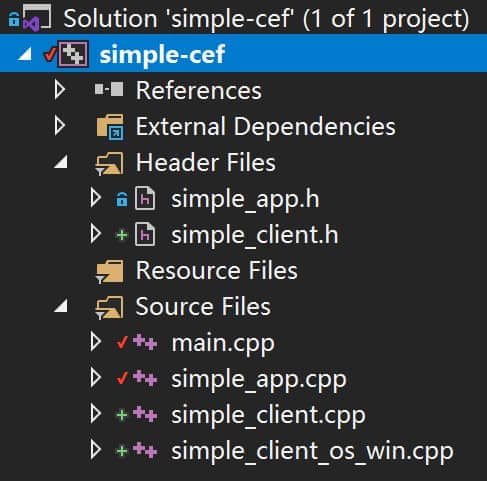
我們右鍵項目使用build指令進行嘗試編譯,如果不出意外會看到這些內容:
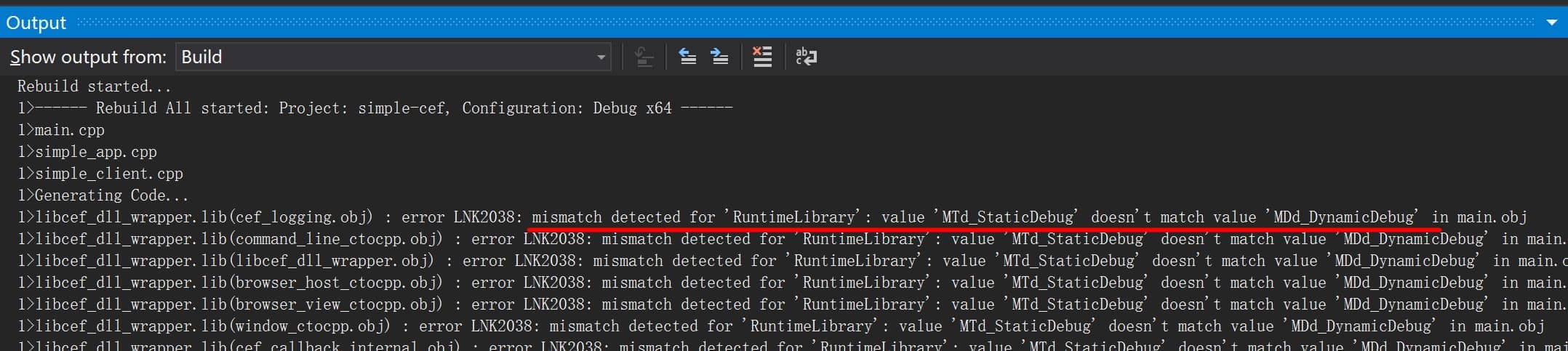
error LNK2038: mismatch detected for 'RuntimeLibrary': value 'MTd_StaticDebug' doesn't match value 'MDd_DynamicDebug'
譯為中文大意為:未檢測到運行時庫:MTd_StaticDebug無法匹配MDd_DynamicDebug,MTd是什么?MDd又是什么?關鍵字:MD、MDd、MT以及MTd。讀者可以參考這篇文章深入了解:VS運行時 /MD、/MDd 和 /MT、/MTd之間的區別。簡單一點講,我們編譯出來的libcef_dll_wrapper.lib庫的某個標志與我們當前編譯的程序的某個標志不一致:一個是MTd一個是MDd。那么這個標志在哪兒設置呢?我們可以右鍵項目工程——properties——C/C++——Code Generation(代碼生成)——Runtime Library中看到。

在我們的simple項目中,VS在創建項目的時候默認使用了MDd,那么libcef_dll_wrapper.lib又是使用的什么呢?在《使用CEF(1)— 起步》文章中編譯libcef_dll_wrapper.lib的項目目錄下使用的是MTd。下圖是再回看當時的項目使用的運行庫類型:

當然,具體情況也要具體判斷。例如Debug與Release的不同,又或者是當時確實是使用MD(d)進行編譯的,總之需要一一對應起來。這里我們修改我們的simple項目的RuntimeLibrary為對應的MTd,再次進行編譯。不出意外,你會看到如下的編譯成功的輸出:
Rebuild started...
1>------ Rebuild All started: Project: simple-cef, Configuration: Debug x64 ------
1>main.cpp
1>simple_app.cpp
1>simple_client.cpp
1>simple_client_os_win.cpp
1>Generating Code...
1>simple-cef.vcxproj -> D:\Projects\cef-projects\simple-cef\x64\Debug\simple-cef.exe
========== Rebuild All: 1 succeeded, 0 failed, 0 skipped ==========
於是,我們運行生成出來的exe,不出意外會有彈框報錯。
---------------------------
simple-cef.exe - 系統錯誤
---------------------------
由於找不到 libcef.dll,無法繼續執行代碼。重新安裝程序可能會解決此問題。
---------------------------
確定
---------------------------
檢查目錄下發現,確實只有個孤單的可執行程序,並沒有那些依賴庫。此時我們需要將所有的依賴文件全部復制到運行目錄下,主要有以下幾個部分需要拷貝:
- Resources
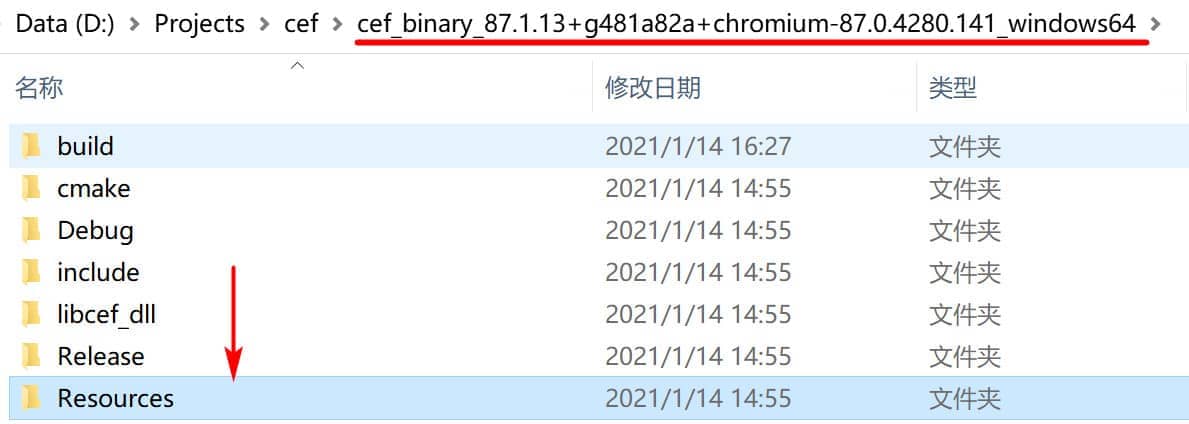
把Resources文件夾里面的所有文件和子文件夾復制到運行目錄下。
- CEF依賴庫文件
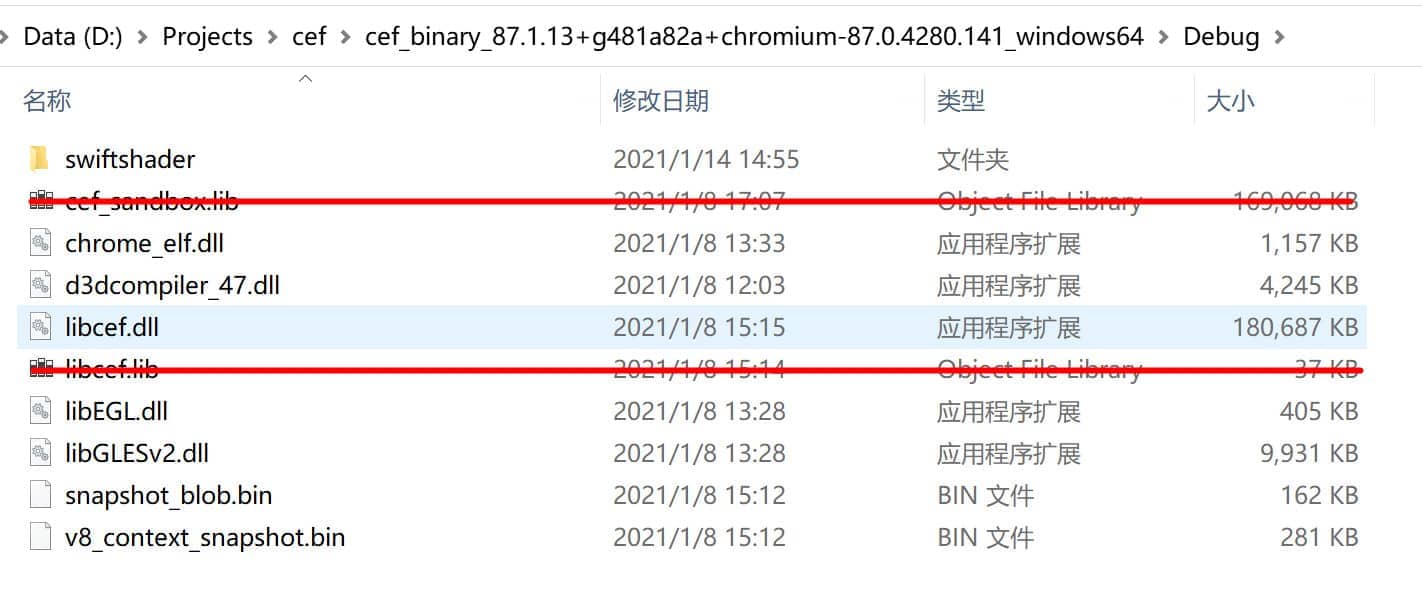
將上圖中除了兩個lib庫文件之外的組件拷貝到運行目錄下。
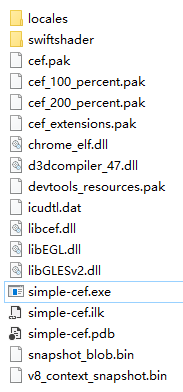
此時,我們的編譯出來的運行目錄如下:
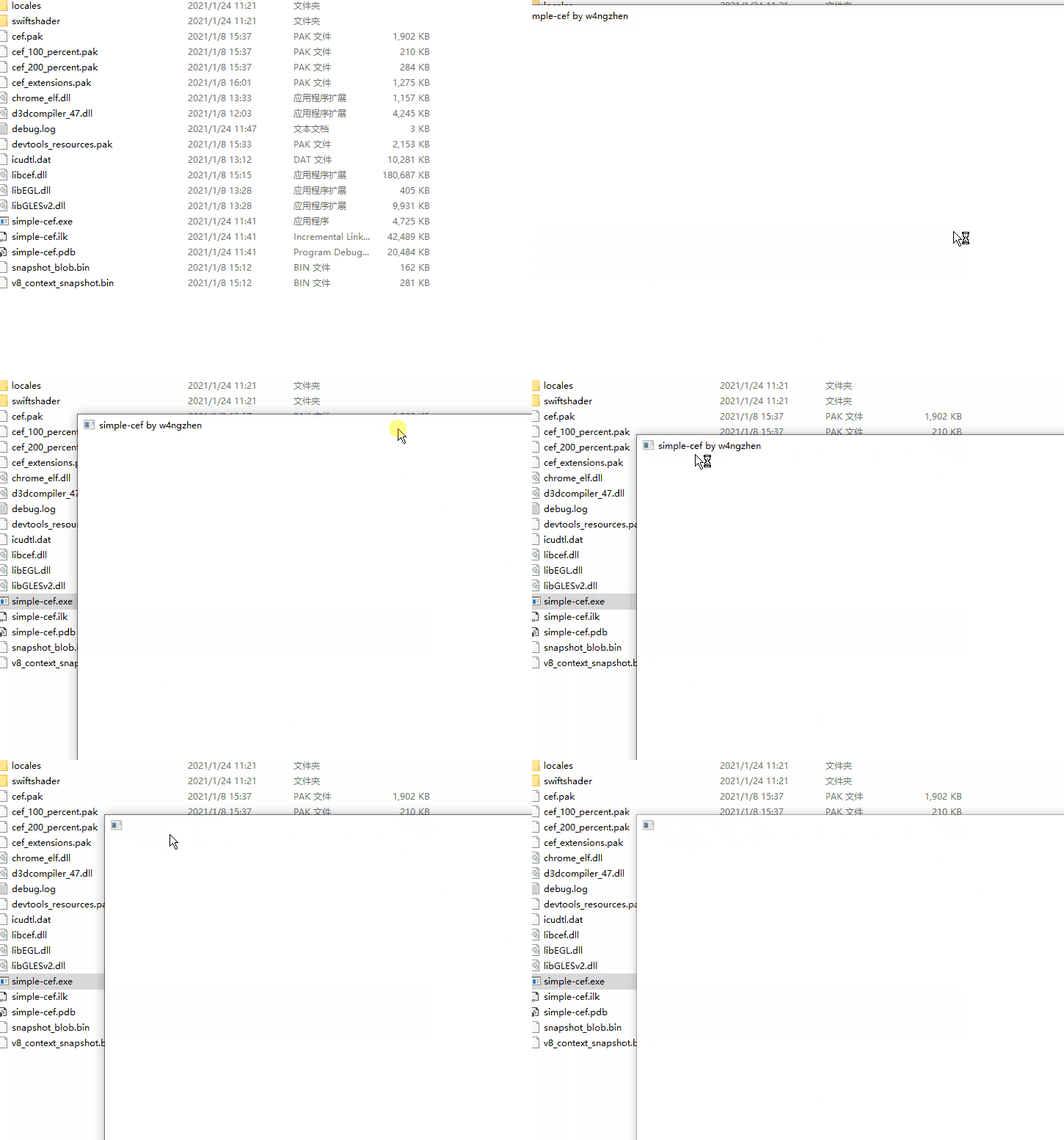
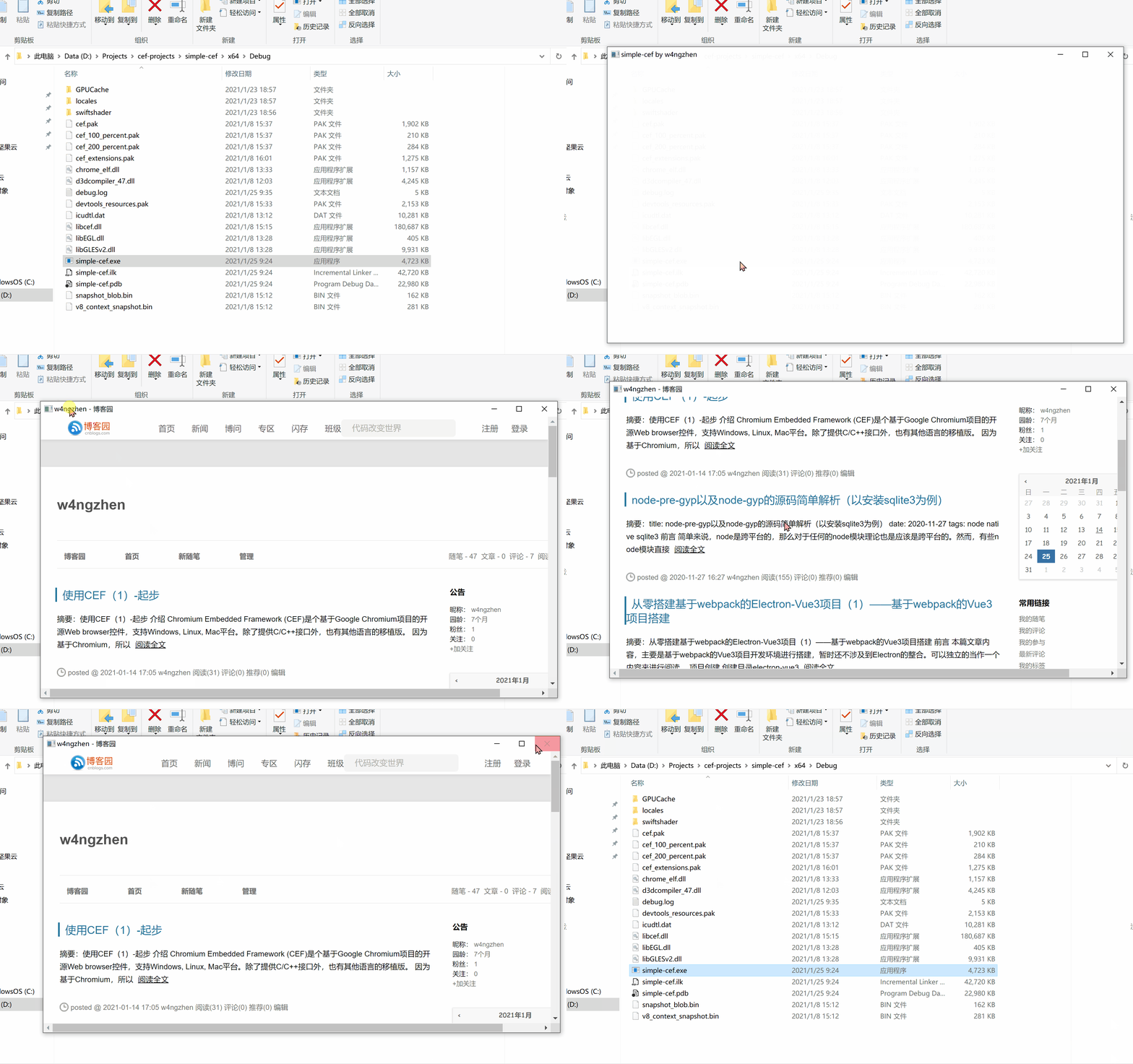
我們再次嘗試運行該simple-cef,終於能夠成功打開,然而再次不出意外的話,會看到一個白屏的瀏覽器窗口。首先會看到標題,然后轉為對應的空白:
運行問題:Check failed: fallback_available == base::win::GetVersion() > base::win::Version::WIN8 (1 vs. 0)
上述白屏后,還會在運行目錄下會看到一個名為debug.log的文件,打開檢查內容。

// debug.log
[0124/113454.346:INFO:content_main_runner_impl.cc(976)] Chrome is running in full browser mode.
[0124/113454.488:FATAL:dwrite_font_proxy_init_impl_win.cc(91)] Check failed: fallback_available == base::win::GetVersion() > base::win::Version::WIN8 (1 vs. 0)
[0124/113454.545:FATAL:dwrite_font_proxy_init_impl_win.cc(91)] Check failed: fallback_available == base::win::GetVersion() > base::win::Version::WIN8 (1 vs. 0)
該錯誤的關鍵字:CEF base::win::GetVersion() > base::win::Version::WIN8。這里能夠得到一個CEF官方論壇的解答:CEF Forum Check failed: fallback_available (magpcss.org)。簡單來說,瀏覽器程序無法加載manifest文件從而無法處理操作系統的版本問題。
解決方案
- 創建manifest文件放在項目根目錄下
在項目根目錄下創建一個manifest文件:simple-cef.manifest
<?xml version="1.0" encoding="utf-8"?>
<assembly xmlns="urn:schemas-microsoft-com:asm.v1" manifestVersion="1.0">
  <compatibility xmlns="urn:schemas-microsoft-com:compatibility.v1">
    <application>
      <!--The ID below indicates application support for Windows 8.1 -->
      <supportedOS Id="{1f676c76-80e1-4239-95bb-83d0f6d0da78}"/>
      <!-- 10.0 -->
      <supportedOS Id="{8e0f7a12-bfb3-4fe8-b9a5-48fd50a15a9a}"/>
    </application>
  </compatibility>
</assembly>
- 為項目添加上述manifest
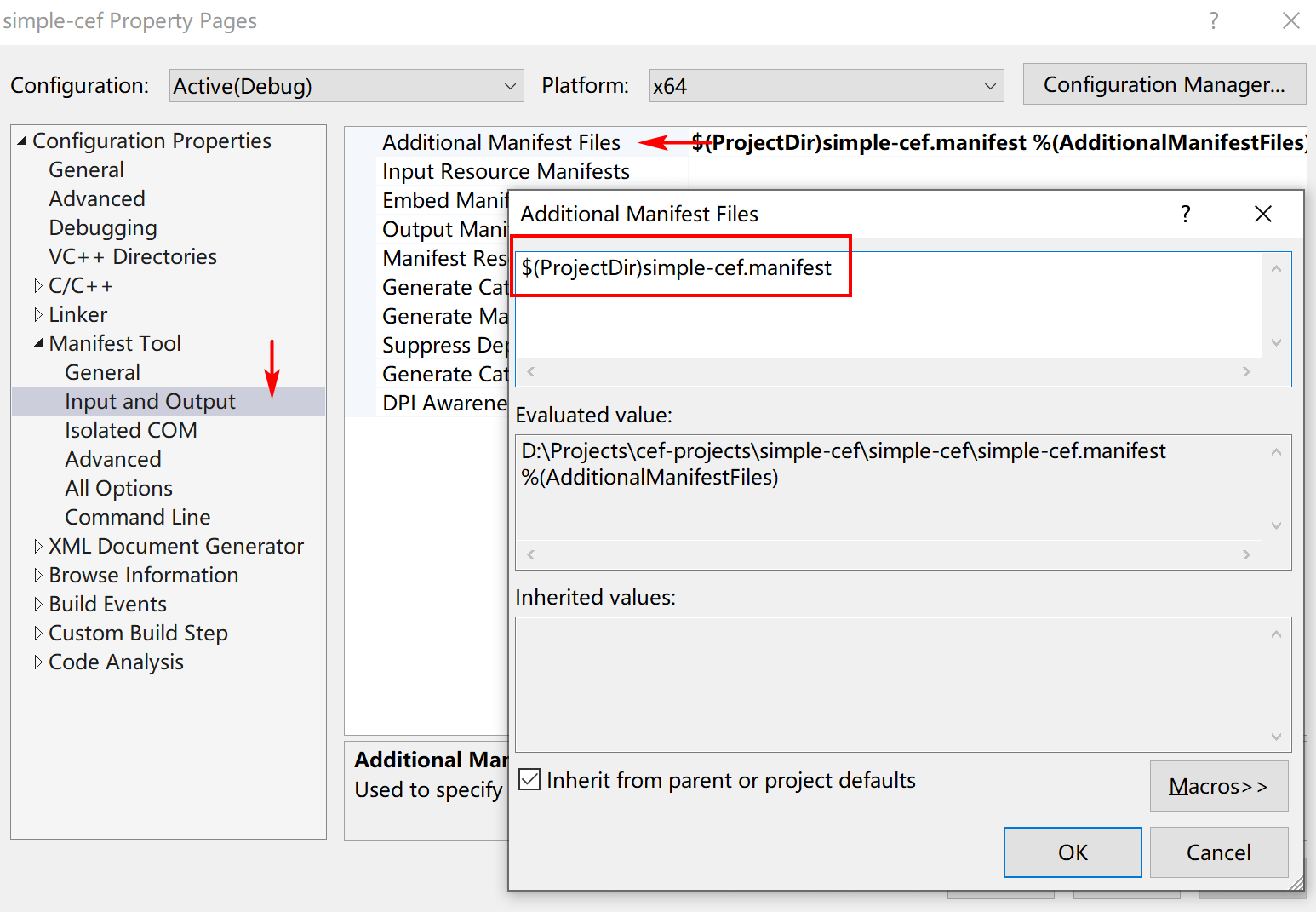
打開項目的屬性,找到Manifest Tool —— Input and Output —— Additional Manifest Files,選擇項目根目錄下的simple-cef.manifest。
保存后,我們再次構建項目並運行我們的simple-cef.exe,終於看到了期待已久的頁面:
寫在結尾
在不斷的踩坑下,我們終於得到了一個網絡頁面,不過這並不意味着我們的使用CEF之旅就結束了,恰恰相反,通過這個Demo,我們接觸到了更多的東西,有CefApp、CefClient類,有CefBrowserProcessHandler等等,這些類是干什么的?CefWindowDelegate、CefBrowserViewDelegate這里些CEF框架提供的窗體GUI代理又是怎樣的概念?CEF跨平台的實現策略又是怎樣的呢?問題只增不減,本人也會就着這些問題繼續探索並給出總結。
源代碼
w4ngzhen/simple-cef (github.com)
PS:在改源碼中,沒有將上述的cef相關庫以及include文件放在源碼庫中,因為靜態庫超過了大小。請讀者自行編譯並按照指定的方式添加。