
前面采用 nginx + nginx-rtmp-module 的方式搭建 RTMP 服務器,由於在 windows 下未對 rtmp 模塊進行編譯,所以后面采用了 nginx Gryphon + nginx-rtmp-module 的方式,成功搭建了 RTMP 服務器。
1 環境與准備文件
開發環境:windows
開發工具:ffmpeg、nginx 1.7.11.3 Gryphon(nginx)、nginx-rmtp-module、vlc media player播放器
官方ffmpeg下載地址:http://www.ffmpeg.org
官方nginx下載地址:http://nginx.org/en/download.html
官方nginx 1.7.11.3 Gryphon下載地址:http://nginx-win.ecsds.eu/download/nginx
官方nginx-rtmp-module下載地址:https://github.com/arut/nginx-rtmp-module
官方vlc media player下載地址:https://www.videolan.org/vlc
2 安裝nginx、ffmpeg與啟動nginx
分別下載最新版本的 nginx 和 ffmpeg,都復制到 E:\technology 目錄下,然后再將下載好的 nginx-rtmp-module 復制到 E:\technology\nginx-rtmp-module目錄下。
然后配置環境變量:右鍵我的電腦 》屬性 》高級系統設置 》高級 》環境變量 》雙擊 Path ,將 E:\technology\ffmpeg-4.2.1-win64-static\bin 和 E:\technology\nginx-1.17.9 都添加到 Path 路徑下。
有很多種方法啟動 nginx:
(1)直接雙擊 nginx.exe,雙擊后一個黑色的彈窗一閃而過。
(2)打開 cmd 命令窗口,切換到 nginx 解壓目錄下,輸入命令 nginx.exe 或者 start nginx ,回車即可。
3 檢查nginx是否啟動成功
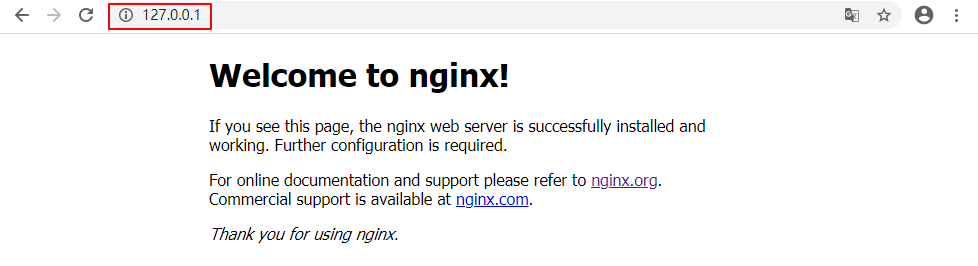
直接在瀏覽器地址欄輸入網址 http://127.0.0.1:80 或者 http://localhost:80,回車,出現以下頁面說明啟動成功:
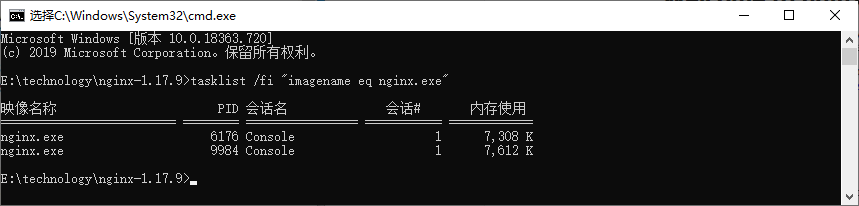
也可以在 cmd 命令窗口輸入命令tasklist /fi "imagename eq nginx.exe,出現如下結果說明啟動成功:
nginx 的配置文件是 conf 目錄下的 nginx.conf,默認配置的 nginx 監聽的端口為 80,如果 80 端口被占用可以修改為未被占用的端口即可,也因此 chrome 瀏覽器未顯示端口。
檢查 80 端口是否被占用的命令是:netstat -ano | findstr 0.0.0.0:80 或 netstat -ano | findstr "80",如果打印出了一下內容則說明 80 端口被占用:
TCP 0.0.0.0:80 0.0.0.0:0 LISTENING 6220
當我們修改了 nginx 的配置文件 nginx.conf 時,不需要關閉 nginx 后重新啟動 nginx,只需要執行命令nginx -s reload即可讓改動生效
4 配置nginx.conf文件
默認的 nginx.conf 文件並沒有配置 RTMP 服務器,需要我們手動添加配置。具體步驟為:在 conf 目錄中,復制粘貼 nginx.conf 文件並將其重名為 nginx-win.conf,修改其內容為:
#user  nobody;
# multiple workers works !
worker_processes  2;

#error_log  logs/error.log;
#error_log  logs/error.log  notice;
#error_log  logs/error.log  info;

#pid        logs/nginx.pid;

events {
    worker_connections  8192;
    # max value 32768, nginx recycling connections+registry optimization =
    #   this.value * 20 = max concurrent connections currently tested with one worker
    #   C1000K should be possible depending there is enough ram/cpu power
    # multi_accept on;
}

rtmp {
    server {
        listen 1935;
        chunk_size 4000;
        application live {
             live on;
        }
    }
}

http {
    #include      /nginx/conf/naxsi_core.rules;
    include       mime.types;
    default_type  application/octet-stream;

    #log_format  main  '$remote_addr:$remote_port - $remote_user [$time_local] "$request" '
    #                  '$status $body_bytes_sent "$http_referer" '
    #                  '"$http_user_agent" "$http_x_forwarded_for"';

    #access_log  logs/access.log  main;

#     # loadbalancing PHP
#     upstream myLoadBalancer {
#         server 127.0.0.1:9001 weight=1 fail_timeout=5;
#         server 127.0.0.1:9002 weight=1 fail_timeout=5;
#         server 127.0.0.1:9003 weight=1 fail_timeout=5;
#         server 127.0.0.1:9004 weight=1 fail_timeout=5;
#         server 127.0.0.1:9005 weight=1 fail_timeout=5;
#         server 127.0.0.1:9006 weight=1 fail_timeout=5;
#         server 127.0.0.1:9007 weight=1 fail_timeout=5;
#         server 127.0.0.1:9008 weight=1 fail_timeout=5;
#         server 127.0.0.1:9009 weight=1 fail_timeout=5;
#         server 127.0.0.1:9010 weight=1 fail_timeout=5;
#         least_conn;
#     }

    sendfile        off;
    #tcp_nopush     on;

    server_names_hash_bucket_size 128;

## Start: Timeouts ##
    client_body_timeout   10;
    client_header_timeout 10;
    keepalive_timeout     30;
    send_timeout          10;
    keepalive_requests    10;
## End: Timeouts ##

    #gzip  on;

    server {
        listen       80;
        server_name  localhost;


        location /stat {
            rtmp_stat all;
            rtmp_stat_stylesheet stat.xsl;
        }
        location /stat.xsl {
            root nginx-rtmp-module/;
        }
        location /control {
            rtmp_control all;
        }

        #charset koi8-r;
        #access_log  logs/host.access.log  main;

        ## Caching Static Files, put before first location
        #location ~* \.(jpg|jpeg|png|gif|ico|css|js)$ {
        #    expires 14d;
        #    add_header Vary Accept-Encoding;
        #}

# For Naxsi remove the single # line for learn mode, or the ## lines for full WAF mode
        location / {
            #include    /nginx/conf/mysite.rules; # see also http block naxsi include line
            ##SecRulesEnabled;
         ##DeniedUrl "/RequestDenied";
         ##CheckRule "$SQL >= 8" BLOCK;
         ##CheckRule "$RFI >= 8" BLOCK;
         ##CheckRule "$TRAVERSAL >= 4" BLOCK;
         ##CheckRule "$XSS >= 8" BLOCK;
            root   html;
            index  index.html index.htm;
        }

# For Naxsi remove the ## lines for full WAF mode, redirect location block used by naxsi
        ##location /RequestDenied {
        ##    return 412;
        ##}

## Lua examples !
#         location /robots.txt {
#           rewrite_by_lua '
#             if ngx.var.http_host ~= "localhost" then
#               return ngx.exec("/robots_disallow.txt");
#             end
#           ';
#         }

        #error_page  404              /404.html;

        # redirect server error pages to the static page /50x.html
        #
        error_page   500 502 503 504  /50x.html;
        location = /50x.html {
            root   html;
        }

        # proxy the PHP scripts to Apache listening on 127.0.0.1:80
        #
        #location ~ \.php$ {
        #    proxy_pass   http://127.0.0.1;
        #}

        # pass the PHP scripts to FastCGI server listening on 127.0.0.1:9000
        #
        #location ~ \.php$ {
        #    root           html;
        #    fastcgi_pass   127.0.0.1:9000; # single backend process
        #    fastcgi_pass   myLoadBalancer; # or multiple, see example above
        #    fastcgi_index  index.php;
        #    fastcgi_param  SCRIPT_FILENAME  $document_root$fastcgi_script_name;
        #    include        fastcgi_params;
        #}

        # deny access to .htaccess files, if Apache's document root
        # concurs with nginx's one
        #
        #location ~ /\.ht {
        #    deny  all;
        #}
    }

    # another virtual host using mix of IP-, name-, and port-based configuration
    #
    #server {
    #    listen       8000;
    #    listen       somename:8080;
    #    server_name  somename  alias  another.alias;

    #    location / {
    #        root   html;
    #        index  index.html index.htm;
    #    }
    #}

    # HTTPS server
    #
    #server {
    #    listen       443 ssl spdy;
    #    server_name  localhost;

    #    ssl                  on;
    #    ssl_certificate      cert.pem;
    #    ssl_certificate_key  cert.key;
    #    ssl_session_timeout  5m;
    #    ssl_prefer_server_ciphers On;
    #    ssl_protocols TLSv1 TLSv1.1 TLSv1.2;
    #    ssl_ciphers ECDH+AESGCM:ECDH+AES256:ECDH+AES128:ECDH+3DES:RSA+AESGCM:RSA+AES:RSA+3DES:!aNULL:!eNULL:!MD5:!DSS:!EXP:!ADH:!LOW:!MEDIUM;

    #    location / {
    #        root   html;
    #        index  index.html index.htm;
    #    }
    #}
}
這里監聽端口未改動,仍然為 80,重點添加了 RTMP 服務器的相關配置,以搭建 RTMP 服務器,rtmp 協議的默認端口號是 1935。具體的配置詳解請參考:菜鳥教程 - Nginx 配置詳解
5 nginx方式啟動服務器(失敗)
按住 windows 鍵 +R,輸入 cmd,進入 cmd 命令窗口,進入 nginx 目錄:cd E:\technology\nginx-1.17.9,然后啟動 nginx rtmp 服務器:
nginx.exe -c conf\nginx-win.conf
出現該錯誤:
nginx: [emerg] unknown directive "rtmp" in E:\technology\nginx-1.17.9/conf\nginx-win.conf:19
網上搜索該錯誤,找到解決該問題的博客:windows下nginx的rtmp配置加載問題 unknown directive "rtmp"
原因是:nginx 的 windows 版本可能在編譯的時候沒有對 rtmp 模塊進行編譯導致使用不了。
方法1:
下載源碼重新進行編譯並把 rtmp 模塊進行編譯進去,過程較為繁瑣,這里不推薦,有興趣的可以參考:第二講:win7下nginx-rtmp-module的編譯方法
方法2:
下載帶 rtmp 模塊的 nginx 版本,如 nginx 1.7.11.3 Gryphon,后續親測可用。
6 nginx Gryphon方式搭建RTMP服務器(成功)
1. 下載 nginx 1.7.11.3 Gryphon
下載帶 rtmp 模塊的 nginx 版本,如 nginx 1.7.11.3 Gryphon,下載地址為:http://nginx-win.ecsds.eu/download/nginx
下載完成后解壓,將解壓后的目錄名:nginx 1.7.11.3 Gryphon 改成:nginx-1.7.11.3-Gryphon。
2. 下載服務器狀態檢查程序
下載 nginx-rtmp-module,下載地址為:https://github.com/arut/nginx-rtmp-module/
將 nginx-rtmp-module-master.zip 解壓后復制到目錄 nginx-1.7.11.3-Gryphon 下,保證 stat.xls 的目錄為:nginx-1.7.11.3-Gryphon\nginx-rtmp-module\stat.xsl。
3. 配置文件 conf\nginx-win.conf
與上面第 4 大步一致。
4. 啟動服務器
按住 windows 鍵 +R,輸入 cmd,進入 cmd 命令窗口,進入 nginx 目錄:cd E:\technology\nginx-1.7.11.3-Gryphon,然后啟動 nginx rtmp 服務器:
nginx.exe -c conf\nginx-win.conf
7 RTMP 推流測試
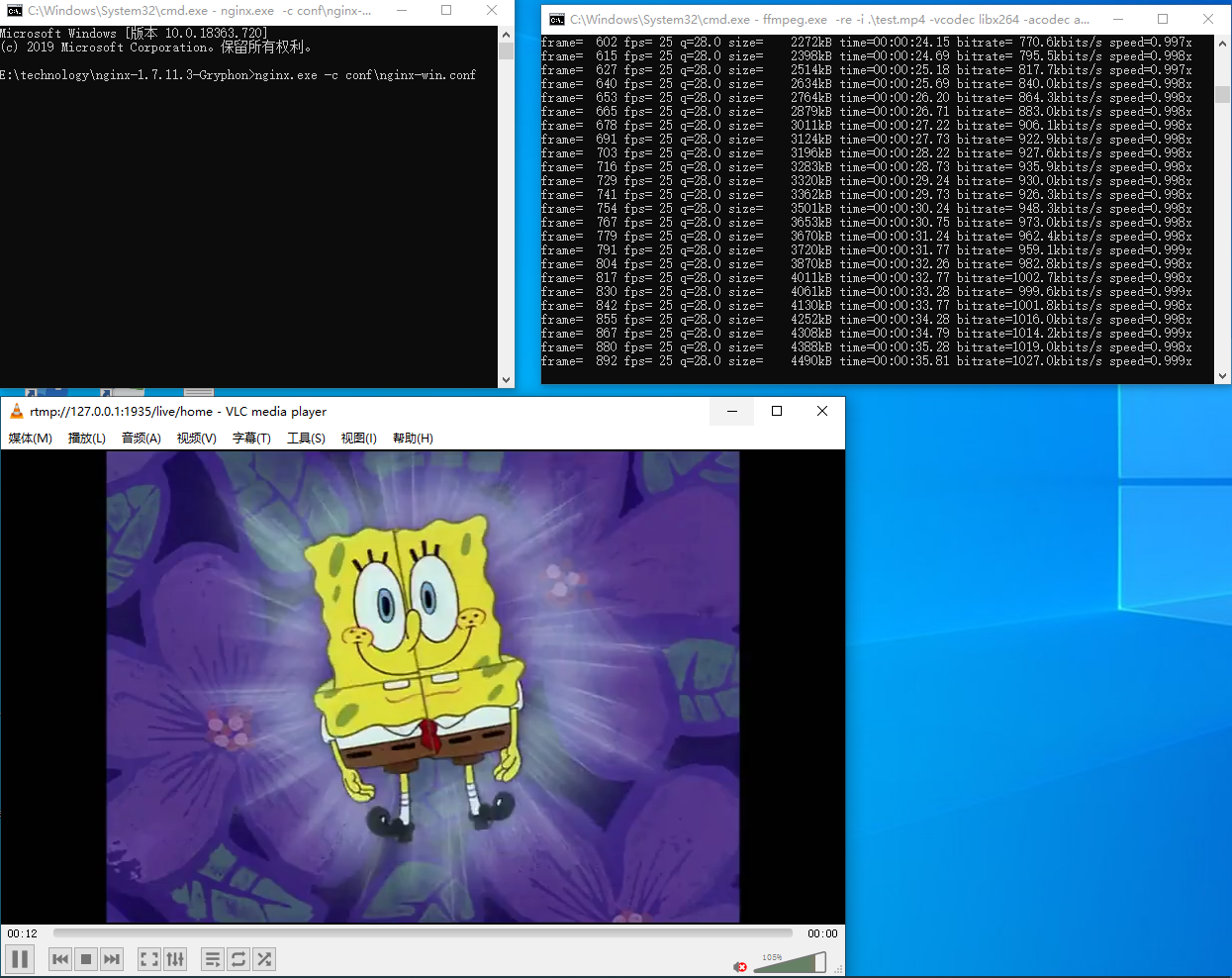
FFmpeg 本地視頻推流測試:
ffmpeg.exe -re -i .\test.mp4 -vcodec libx264 -acodec aac -f flv rtmp://127.0.0.1:1935/live/home
使用 VLC 播放器測試,輸入網絡 URL:rtmp://127.0.0.1:1935/live/home
上面 IP 地址均可換成本地 IP。
攝像頭推流測試:
ffmpeg -f dshow -i video="FHD Camera" -vcodec libx264 -preset:v ultrafast -tune:v zerolatency -f flv rtmp://127.0.0.1:1935/live/home
在設備管理器的"照相機"處,獲得攝像頭設備名稱攝像頭為"FHD Camera"。更多推流命令請參考:Windows 搭建 nginx rtmp服務器
8 擴展:關閉nginx
如果使用 cmd 命令窗口啟動 nginx,關閉 cmd 窗口是不能結束 nginx 進程的,可使用兩種方法關閉 nginx:
(1)輸入 nginx 命令:nginx -s stop(快速停止 nginx) 或 nginx -s quit(完整有序的停止nginx)
(2)使用taskkill命令: taskkill /f /t /im nginx.exe
參考: