
macOS Mojave 中引入了系統層面的黑色模式,Chrome 73 在應用中支行了這一模式,即系統設置為黑色模式時,Chrome 會自動適應切換到 Dark Mode。
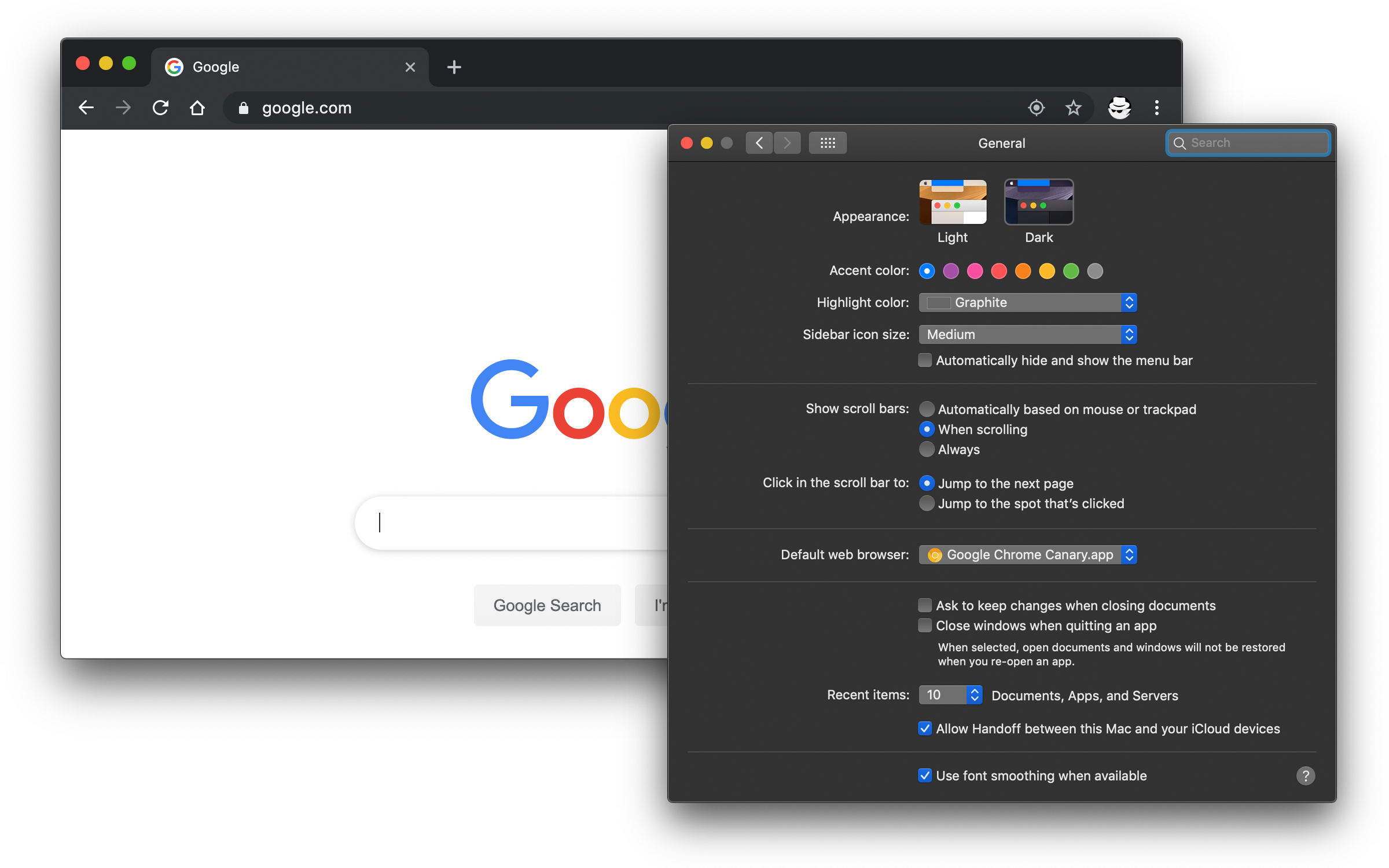
Chrome 跟隨系統設置的黑色模式
很酷對不?
但其實黑色模式下標題與頂部系統菜單融為一體,且黑色模式下 Chrome 標簽上內容辨識度也不高了,看起來還是有點別扭。更重要的是,這個模式讓人很難區分隱身模式。
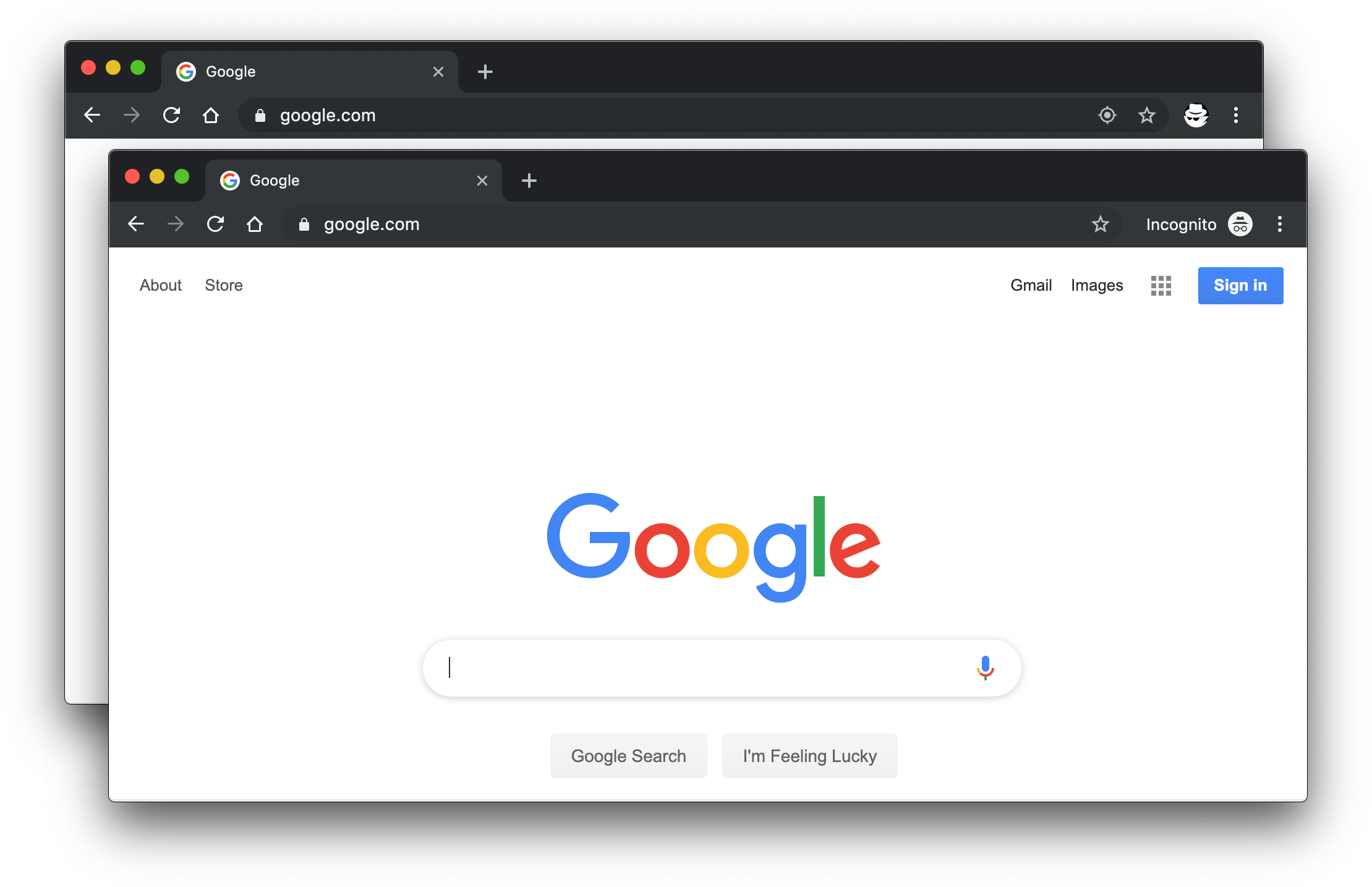
Chrome 黑色模式下與隱身模式的對比
所以決定系統使用 Dark Mode 的情況下將 Chrome 的黑色禁用。
通過命令行中設置 defaults 值可達到目的。
$ defaults write com.google.Chrome NSRequiresAquaSystemAppearance -bool Yes
如果想恢復默認,只需要將剛才設置的值刪掉或者將 Yes 設置成 No。
$ defaults delete com.google.Chrome NSRequiresAquaSystemAppearance
禁用任意 App 的 Dark Mode
推而廣之,不僅可禁止 Chrome 進入 Dark Mode,還可讓其他任意 App 不進入 Dark Mode,如果該應用支持過 Dark Mode 的話。只需要找出該應用的打包發布的 bundle id 即可。這個 id 可通過下面的命令來得到。比如查看 Canary 版本的 Chrome:
$ osascript -e 'id of app "Google Chrome Canary"'
com.google.Chrome.canary
其中 Google Chrome Canary (不區分大小寫)是你在程序文件夾下看到的 .app 后綴的那個文件的文件名,比如這里 Google Chrome Canary.app。得到的 id 為 com.google.Chrome.canary 再代入最上面的命令中即可。
程序 bundle id 的查找
更為准備的方式,查找 id,是通過右鍵 .app 文件選擇 Show Package Contents,然后找到 Contents>info.plist 文件,搜索 CFBundleIdentifier 即可看到該程序的 bundle id。
$ defaults write com.google.Chrome.canary NSRequiresAquaSystemAppearance -bool Yes
這里 id 是區分大小寫的,寫錯不生效。
要恢復默認時同理。
一些常用軟件
- 網易雲音樂
同理,設置網易雲音樂關閉其黑色模式,通過 plist 文件發現其 bundle id 為 com.netease.163music,
...
<key>CFBundleIdentifier</key>
<string>com.netease.163music</string>
...
設置:
defaults write com.netease.163music NSRequiresAquaSystemAppearance -bool Yes
- iBooks:
defaults write com.apple.iBooksX NSRequiresAquaSystemAppearance -bool Yes
- Xcode:
defaults write com.apple.dt.Xcode NSRequiresAquaSystemAppearance -bool YES
其他默認值
通過 defaults read 可查看到所有應用已經存在的的 defaults 值。
$ defaults read >> defaults.txt
打開 defaults.txt 后搜索相應 app 的 id 可看到其所有可用值的列表。比如搜索 com.google.chrome
{
      "com.google.Chrome" =     {
        KeychainReauthorizeInAppSpring2017 = 2;
        KeychainReauthorizeInAppSpring2017Success = 1;
        LastRunAppBundlePath = "/Applications/Google Chrome.app";
        ...
    };
    "com.google.Chrome.canary" =     {
        KeychainReauthorizeInAppSpring2017 = 1;
        KeychainReauthorizeInAppSpring2017Success = 1;
        LastRunAppBundlePath = "/Applications/Google Chrome Canary.app";
        ...
    };
}