
上篇文章Android libyuv使用系列(一)Android常用的幾種格式:NV21/NV12/YV12/YUV420P的區別中我們了解了YUV相關的知識,而本篇文章我會介紹libyuv是什么,以及如何使用libyuv進行相應的圖像數據處理。
當我們在 Android 中處理 Image 時,常因為 Java 性能和效率問題導致達不到我們期望的效果,例如進行Camera 采集視頻流的原始幀時我們需要每秒能夠獲取足夠的幀率才能流暢的顯示出來,這也是為什么美顏 SDK 和圖像識別等這類 SDK 都是基於 C / C++ 的原因之一。語言的特性也是關鍵因素點,所以常常會在 Java 中調用 C / C++ 的 API 來進行相關操作。
因最近工作需求是替代 Camera 的原始打視頻流,數據源是 Bitmap 格式的,如果使用 Java 的方法來進行Bitmap 的旋轉,轉換為 YUV 類型的 NV21 、YV12 數據的話,那么少說也要 15FPS 的視頻就尷尬的變成了5FPS的PPT幻燈片了。關於YUV的各種格式區別請見我的博客:直播必備之YUV使用總結 —— Android常用的幾種格式:NV21/NV12/YV12/YUV420P的區別,而Google提供了一套Image處理的開源庫[libyuv](git clone https://chromium.googlesource.com/libyuv/libyuv)(科學上網),可高效的對各類Image進行Rotate(旋轉)、Scale(拉伸)和Convert(格式轉換)等操作。
libyuv官方說明
libyuv is an open source project that includes YUV scaling and conversion functionality.
- Scale YUV to prepare content for compression, with point, bilinear or box filter.
- Convert to YUV from webcam formats.
- Convert from YUV to formats for rendering/effects.
- Rotate by 90/180/270 degrees to adjust for mobile devices in portrait mode.
- Optimized for SSE2/SSSE3/AVX2 on x86/x64.
- Optimized for Neon on Arm.
- Optimized for DSP R2 on Mips.
簡單來講,libyuv 就是一個具有可以對 YUV 進行拉伸和轉換等操作的工具庫。
幾個重要的功能:
- 可以使用 point,bilinear 或 box 三種類型的壓縮方法進行YUV的拉伸
- 旋轉 90/180/270 的角度以適配設備的豎屏模式
- 可將 webcam 轉換為 YUV
- 還有一些列的平台性能優化等等
大概了解了libyuv的功能后,我們來看看普通方式和libyuv之間的差距。
系統環境
我的硬件環境是Macbook Pro和PC,硬件環境如下:
| Hardware | Macbook Pro Retina, 13-inch, Early 2015 | PC |
|---|---|---|
| OS | MacOS Sierra 10.12 | Windows 10 |
| CPU | 2.7 GHz Intel Core i5 | i5 6500 |
| RAM | 8 GB 1867 MHz DDR3 | 16G 2400MHz DDR4 |
| HDD | 128 SSD | 256 SSD |
我們使用一張XXX的Bitmap來做一下對比測試,看看不同的系統環境下,效果如何。
Bitmap和YUV的轉換
數據源是 Bitmap,項目中會涉及以下幾種格式:
| Bitmap | YUV |
|---|---|
| ARGB_8888 | NV21 (YUV420SP) |
| RGB_565 | YV12 (YUV420P) |
StackOverFlow上有網友給出了手動轉換BitmapToYuv的方式:
  /**
     * Bitmap轉換成Drawable
     * Bitmap bm = xxx; //xxx根據你的情況獲取
     * BitmapDrawable bd = new BitmapDrawable(getResource(), bm);
     * 因為BtimapDrawable是Drawable的子類,最終直接使用bd對象即可。
     */
    public static byte[] getNV21(int inputWidth, int inputHeight, Bitmap srcBitmap) {
        int[] argb = new int[inputWidth * inputHeight];
        if (null != srcBitmap) {
            try {
                srcBitmap.getPixels(argb, 0, inputWidth, 0, 0, inputWidth, inputHeight);
            } catch (Exception e) {
                e.printStackTrace();
                return null;
            }
			// byte[] yuv = new byte[inputWidth * inputHeight * 3 / 2];
			// encodeYUV420SP(yuv, argb, inputWidth, inputHeight);
            if (null != srcBitmap && !srcBitmap.isRecycled()) {
                srcBitmap.recycle();
                srcBitmap = null;
            }
            return colorconvertRGB_IYUV_I420(argb, inputWidth, inputHeight);
        } else return null;
    }

    private static void encodeYUV420SP(byte[] yuv420sp, int[] argb, int width, int height) {
        final int frameSize = width * height;
        int yIndex = 0;
        int uvIndex = frameSize;

        int a, R, G, B, Y, U, V;
        int index = 0;
        for (int j = 0; j < height; j++) {
            for (int i = 0; i < width; i++) {

                a = (argb[index] & 0xff000000) >> 24; // a is not used obviously
                R = (argb[index] & 0xff0000) >> 16;
                G = (argb[index] & 0xff00) >> 8;
                B = (argb[index] & 0xff) >> 0;

                // well known RGB to YUV algorithm
                Y = ((66 * R + 129 * G + 25 * B + 128) >> 8) + 16;
                U = ((-38 * R - 74 * G + 112 * B + 128) >> 8) + 128;
                V = ((112 * R - 94 * G - 18 * B + 128) >> 8) + 128;

			/* NV21 has a plane of Y and interleaved planes of VU each sampled by a factor of 2 				meaning for every 4 Y pixels there are 1 V and 1 U.  Note the sampling is 					every otherpixel AND every other scanline.*/
                yuv420sp[yIndex++] = (byte) ((Y < 0) ? 0 : ((Y > 255) ? 255 : Y));
                if (j % 2 == 0 && index % 2 == 0) {
                    yuv420sp[uvIndex++] = (byte) ((V < 0) ? 0 : ((V > 255) ? 255 : V));
                    yuv420sp[uvIndex++] = (byte) ((U < 0) ? 0 : ((U > 255) ? 255 : U));
                }
                index++;
            }
        }
    }

    public static byte[] colorconvertRGB_IYUV_I420(int[] aRGB, int width, int height) {
        final int frameSize = width * height;
        final int chromasize = frameSize / 4;

        int yIndex = 0;
        int uIndex = frameSize;
        int vIndex = frameSize + chromasize;
        byte[] yuv = new byte[width * height * 3 / 2];

        int a, R, G, B, Y, U, V;
        int index = 0;
        for (int j = 0; j < height; j++) {
            for (int i = 0; i < width; i++) {
                //a = (aRGB[index] & 0xff000000) >> 24; //not using it right now
                R = (aRGB[index] & 0xff0000) >> 16;
                G = (aRGB[index] & 0xff00) >> 8;
                B = (aRGB[index] & 0xff) >> 0;

                Y = ((66 * R + 129 * G + 25 * B + 128) >> 8) + 16;
                U = ((-38 * R - 74 * G + 112 * B + 128) >> 8) + 128;
                V = ((112 * R - 94 * G - 18 * B + 128) >> 8) + 128;

                yuv[yIndex++] = (byte) ((Y < 0) ? 0 : ((Y > 255) ? 255 : Y));

                if (j % 2 == 0 && index % 2 == 0) {
                    yuv[vIndex++] = (byte) ((U < 0) ? 0 : ((U > 255) ? 255 : U));
                    yuv[uIndex++] = (byte) ((V < 0) ? 0 : ((V > 255) ? 255 : V));
                }
                index++;
            }
        }
        return yuv;
    }
上面的方式如果在不苛求性能的情況下是可以滿足使用的,然而每秒也就能夠達到5~8FPS的水平(與設備的硬件配置也有關系),顯然達不到我的需求。那么使用libyuv后的結果如何呢?別着急,我們先看看如何編譯libyuv。
獲取libyuv
將libyuv git clone下來后,我們可以看到結構目錄如下:
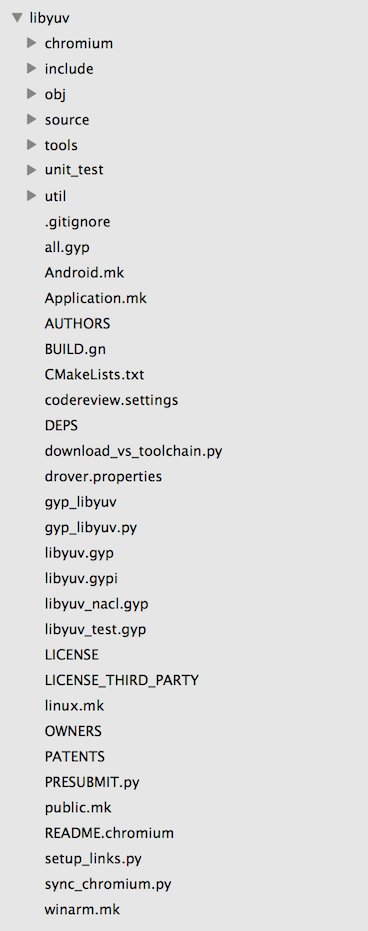
libyuv給出了三個平台的MakeFile文件,可以Build出Windows / Mac OS / Linux三種平台的資源包。因為我使用的是Android,這里以Android.mk為例:
# This is the Android makefile for libyuv for both platform and NDK.
LOCAL_PATH:= $(call my-dir)

include $(CLEAR_VARS)

LOCAL_CPP_EXTENSION := .cc

LOCAL_SRC_FILES := \
    source/compare.cc           \
    source/compare_common.cc    \
    source/compare_neon64.cc    \
    source/compare_gcc.cc       \
    source/convert.cc           \
    source/convert_argb.cc      \
    source/convert_from.cc      \
    source/convert_from_argb.cc \
    source/convert_to_argb.cc   \
    source/convert_to_i420.cc   \
    source/cpu_id.cc            \
    source/planar_functions.cc  \
    source/rotate.cc            \
    source/rotate_argb.cc       \
    source/rotate_mips.cc       \
    source/rotate_neon64.cc     \
    source/row_any.cc           \
    source/row_common.cc        \
    source/row_mips.cc          \
    source/row_neon64.cc        \
    source/row_gcc.cc	        \
    source/scale.cc             \
    source/scale_any.cc         \
    source/scale_argb.cc        \
    source/scale_common.cc      \
    source/scale_mips.cc        \
    source/scale_neon64.cc      \
    source/scale_gcc.cc         \
    source/video_common.cc

# TODO(fbarchard): Enable mjpeg encoder.
#   source/mjpeg_decoder.cc
#   source/convert_jpeg.cc
#   source/mjpeg_validate.cc

ifeq ($(TARGET_ARCH_ABI),armeabi-v7a)
    LOCAL_CFLAGS += -DLIBYUV_NEON
    LOCAL_SRC_FILES += \
        source/compare_neon.cc.neon    \
        source/rotate_neon.cc.neon     \
        source/row_neon.cc.neon        \
        source/scale_neon.cc.neon
endif

LOCAL_EXPORT_C_INCLUDES := $(LOCAL_PATH)/include
LOCAL_C_INCLUDES += $(LOCAL_PATH)/include

LOCAL_MODULE := libyuv_static
LOCAL_MODULE_TAGS := optional

include $(BUILD_STATIC_LIBRARY)
使用NDK編譯libyuv
常用兩種編譯方式:
- 直接引入源碼
通過Gradle使用腳本的方式代替手動編譯。在構建項目的同時將libyuv編譯引入,通過Gradle來構建編譯,具體方法是在app層級的build.gradle中加入對應的Build Task,指定相關路徑,同時構建項目和編譯。
- 預先手動將libyuv編譯成動態庫so文件,放入對應的jniLibs目錄下
使用ndk-build命令進行編譯,每次執行ndk-build之前都需要ndk-build clean一遍才行,不然不會將新的改動編譯進去。
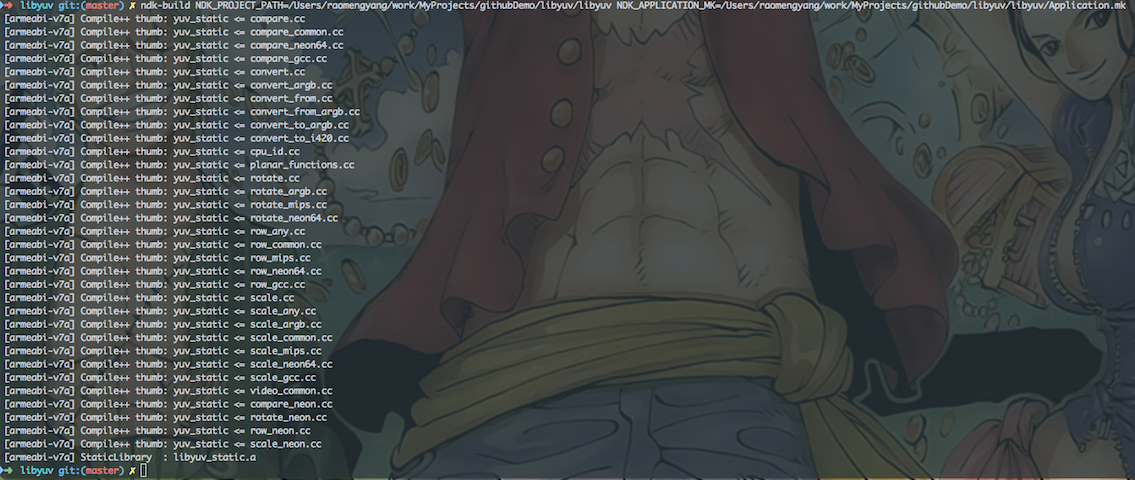
如果使用JNI並且要在 c / c++ 層使用libyuv的話,上述兩種方式都需要在項目中的 Android.mk 文件中加入 libyuv 的引用,如:
LOCAL_PATH := $(call my-dir)

include $(CLEAR_VARS)
LOCAL_LDLIBS := -llog
LOCAL_LDFLAGS += -ljnigraphics
LOCAL_SHARED_LIBRARIES := libyuv
LOCAL_MODULE := yuv_utils
LOCAL_SRC_FILES := com_rayclear_jni_YuvUtils.c
include $(BUILD_SHARED_LIBRARY)

include $(CLEAR_VARS)
LOCAL_MODULE := yuv
LOCAL_SRC_FILES := $(LOCAL_PATH)/libyuv.so
include $(PREBUILT_SHARED_LIBRARY)
到這里libyuv的編譯工作就基本完成了,准備工作做完后,在需要使用的Activity或者Application初始化的時候添加如下代碼進行引入:
public class MyApplication extends Application {

    /**
     * so文件默認前綴帶lib,在此引用時需要去掉"lib"和后綴".so"
     * */
    static {
        System.loadLibrary("yuv_utils");
        System.loadLibrary("yuv");
    }

    private static Context sContext;

    @Override
    public void onCreate() {
        super.onCreate();
        initContext();
    }

    private void initContext() {
        sContext = getApplicationContext();
    }

    public static Context getContext() {
        return sContext;
    }
}
性能對比
先上圖看看區別:
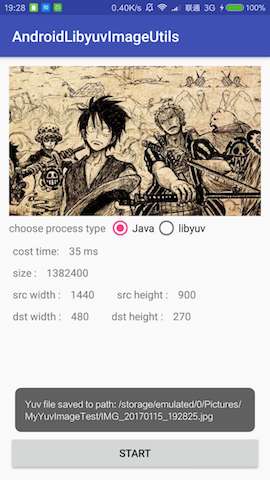
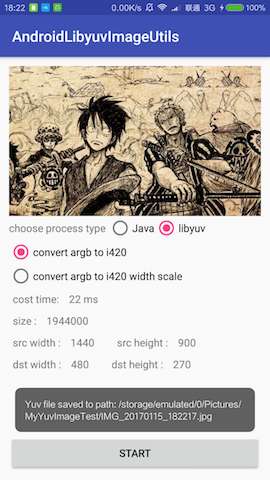
使用Java進行Bitmap轉換為YUV時,一張1440 x 900 的Bitmap耗時大概35 ~ 45ms左右,而使用libyuv則花費14~22 ms左右,性能提升一倍,而更暴力的來了,如果同時進行拉伸縮放和格式轉換,例如1440 x 90 —> 480 x 270,可以實現 5 ~ 13 ms,性能提升了3 ~ 6倍。這意味着1000 ms可以滿足我們不低於25FPS的需求。

Rawviewer查看YUV文件
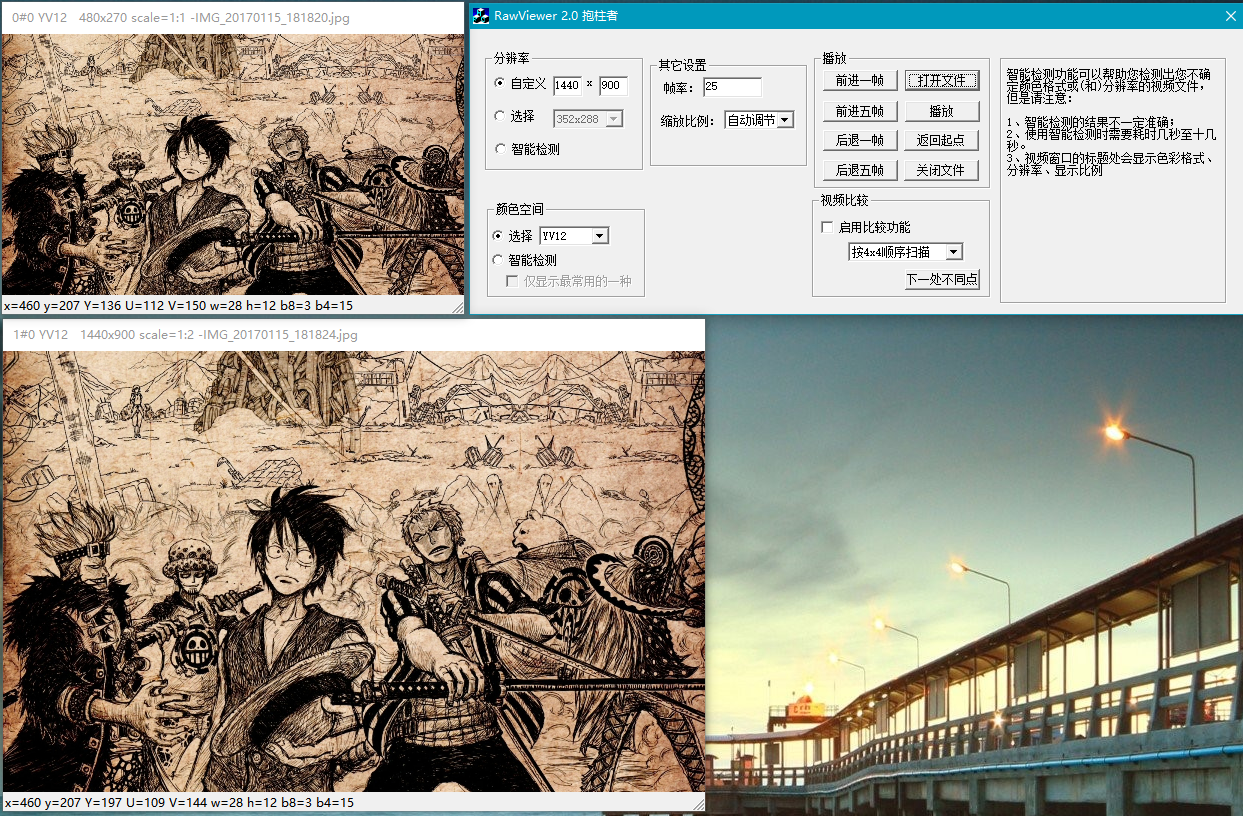
上篇文章中提供了RawViewer的下載地址,但是具體的使用方式還沒說,在Demo中有方法FileUtil.saveYuvToSdCardStorage(dstYuv)用於保存YUV文件(.jpeg為后綴的)到存儲中,從設備中取到這個文件使用RawViewer打開,打開前先進行RawViewer的參數配置,否則可能會閃退。我們預先設定分辨率及格式后打開即可。如下圖所示:
Demo源碼
簡單的Demo結果因為有事拖拖拉拉搞了一下午,不得不對着產率低下感到頭疼啊。Demo源碼在我的GitHub倉庫,這篇文章中介紹的不詳細的地方可以從項目中看看實現即可,后續有時間我會將這個庫做個簡單的工具類封裝。有問題的朋友請隨時留言指錯或者提問,如果覺得對你有幫助的話請順手點個Star,謝謝大家的支持!