
很久很久以前, 網上流傳着一個免費的,識別率暴高的,穩定的 Speech To Text API, 那就是Google Speech API. 但是最近再使用的時候,總是返回500 Error. 后來通過查看源碼知道需要增加一個參數:key=.... 可能是為了防止濫用吧. 並且, 最近Chrome另外發布了一個長連接實時的識別接口, 這對開發者來說真是巨大的福音啊. 在這里主要對這兩個接口的用法進行介紹.
- 博客: http://www.cnblogs.com/jhzhu
- 郵箱: jhzhuustc@gmail.com
- 作者: 知明所以
- 時間: 2014-03-28
關鍵字
SpeechToText,API,google,STT,ASR,SR,speech,recognition
申請Chromium API keys
本文使用的Google Speech API是為google自家的瀏覽器Chrome服務的. 可以通過這個Demo體驗一下實際使用的效果: Google Speech To Text Demo.
Chrome來源於開源項目Chromium. 為了方便開發者調試使用, google 開放了這個STT(Speech to Text)接口. 但是, 因為這個借口只供調試使用, 所以在流量和次數上都有限制.並且, 不提供購買.
好了, 背景介紹完畢, 我們來第一步: 申請Chromium開發者權限.
具體步驟請參考how to get chromium API keys).
Acquiring Keys
- Make sure you are a member of chromium-dev@chromium.org (you can just subscribe to chromium-dev and choose not to receive mail).
For convenience, the APIs below are only visible to people subscribed to that group.- Make sure you are logged in with the Google account associated with the email address that you used to subscribe to chromium-dev.
- Go to https://cloud.google.com/console(請使用舊版console)
- Click the red Create project… button.
- (Optional) You may add other members of your organization or team on the Team tab.
- In the ‘APIs & auth’ > APIs tab, click the On/Off button to turn each of the following APIs to the On position, and read and agree to the Terms of Service that is shown:
(This list might be out of date; try searching for APIs starting with “Chrome” or having “for Chrome” in the name.) * Chrome Remote Desktop API
- Chrome Spelling API
- Chrome Suggest API
- Chrome Sync API
- Chrome Translate Element
- Google Maps Geolocation API (requires enabling billing but is free to use; you can skip this one, in which case geolocation features of Chrome will not work)
- Safe Browsing API
- Speech API
- Time Zone API
- Google Cloud Messaging for Chrome
- Google Now For Chrome API
If any of these APIs are not shown, recheck step 1.- Go to the Credentials tab under the APIs & auth tab.
- Click the red Create New Client ID button in the OAuth section to create an OAuth 2.0 client ID.
- You want “Installed Application” for the Application type section
- You want “Other” for the Installed application type section
- A new box should now appear titled “Client ID for installed applications”. In the next sections, we will refer to the values of the “Client ID” and “Client secret” fields in this box later (below).
- Click the red Create New Key button in the Public API Access section and create a new Browser key.
You want to leave the box on the “Create a browser key and configure allowed referers” empty.- A new box should appear titled “Key for browser applications”. The next sections will refer to the value of the “API key” field too.
好了, 到這里, 我們已經獲得了應用key, 在下文我們用{key}表示這個key.
One Shot Recognition
我們用curl來向服務器發送請求:
curl -X POST \ --data-binary @speech.flac \ --user-agent 'Mozilla/5.0 (Macintosh; Intel Mac OS X 10_6_8) AppleWebKit/535.7 (KHTML, like Gecko) Chrome/16.0.912.77 Safari/535.7' \ --header 'Content-Type: audio/x-flac; rate=8000;' \ 'https://www.google.com/speech-api/v1/recognize?client=chromium&lang=zh-CN&maxresults=5&pfilter=0&key=AIzaSyC6Tkf4*****Q0CdISn-qnHhwLaS3cg2a0' | 參數 | 解釋 |
|---|---|
| -X POST | 表示發送HTTP請求 |
| –data-binary @speech.flac | 發送音頻文件speech.flac |
| –user-agent ‘…’ | http的參數,設置瀏覽器的user-agent信息 |
| –header | http的參數. 指定了傳送內容的類型(audio/flac)和音頻頻率(8000Hz). 注意, 只支持特定的幾種頻率(8000Hz,4000Hz還有幾個記不清了),上傳的flac文件頻率要和參數一致. |
| https://www.google.com/…/&key=AIzaSyC6Tkf*****Q0CdISn-qnHhwLaS3cg2a0 | http請求地址,其中最后一部分的key,應該替換為您申請的{key}. |
等待一分鍾左右, 如果你運氣好的話, 能看到如下結果:
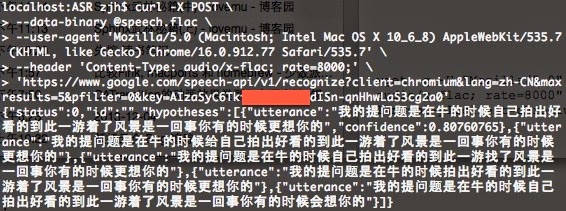
結果格式如下, 應該很清晰了吧:
{ "status": 0, "id": "b3447b5d98c5653e0067f35b32c0a8ca-1", "hypotheses": [ { "utterance": "i like pickles", "confidence": 0.9012539 }, { "utterance": "i like pickle" } ] }如果您錄音的格式不對的話, 可以用開源軟件sox方便的轉換格式和碼率. 舉個栗子:
sox ./speech.mp3 -b 8 speech.flac trim 0 15| 參數 | 解釋 |
|---|---|
| ./speech.mp3 | 輸入文件 |
| -b 8 | 輸出文件頻率為 8kHz |
| speech.flac | 輸出文件名 |
| trim 0 15 | 截取輸入文件的0~15秒的部分, 輸出出來 |
Stream Recognition
后來, Google 提供了更先進的live的雙向的識別接口. 即同時打開兩個HTTP連接, 一個負責實時發送(POST)音頻流, 一個負責接受(GET).
這里有一個PHP版本的Demo. 可以參考實現您自己的Stream Recognition:
Google Speech API – Full Duplex PHP Version
引用:
Google Speech API – Full Duplex PHP Version
http://mikepultz.com/2013/07/google-speech-api-full-duplex-php-version/Accessing Google Speech API / Chrome 11
http://mikepultz.com/2011/03/accessing-google-speech-api-chrome-11/Google Speech To Text API ( 9 months ago )
https://gist.github.com/alotaiba/1730160避開Google Voice Search利用Google Speech API實現Android語音識別
http://my.eoe.cn/sisuer/archive/5960.htmlHow to Use Google Speech API( with sox )
http://www.x2q.net/blog/2013/09/16/how-to-use-google-speech-api/Google Chomium Open Project
http://src.chromium.org/viewvc/chrome/trunk/src/content/browser/speech/
http://src.chromium.org/viewvc/chrome/trunk/src/content/browser/speech/google_one_shot_remote_engine.cc
Written with StackEdit.